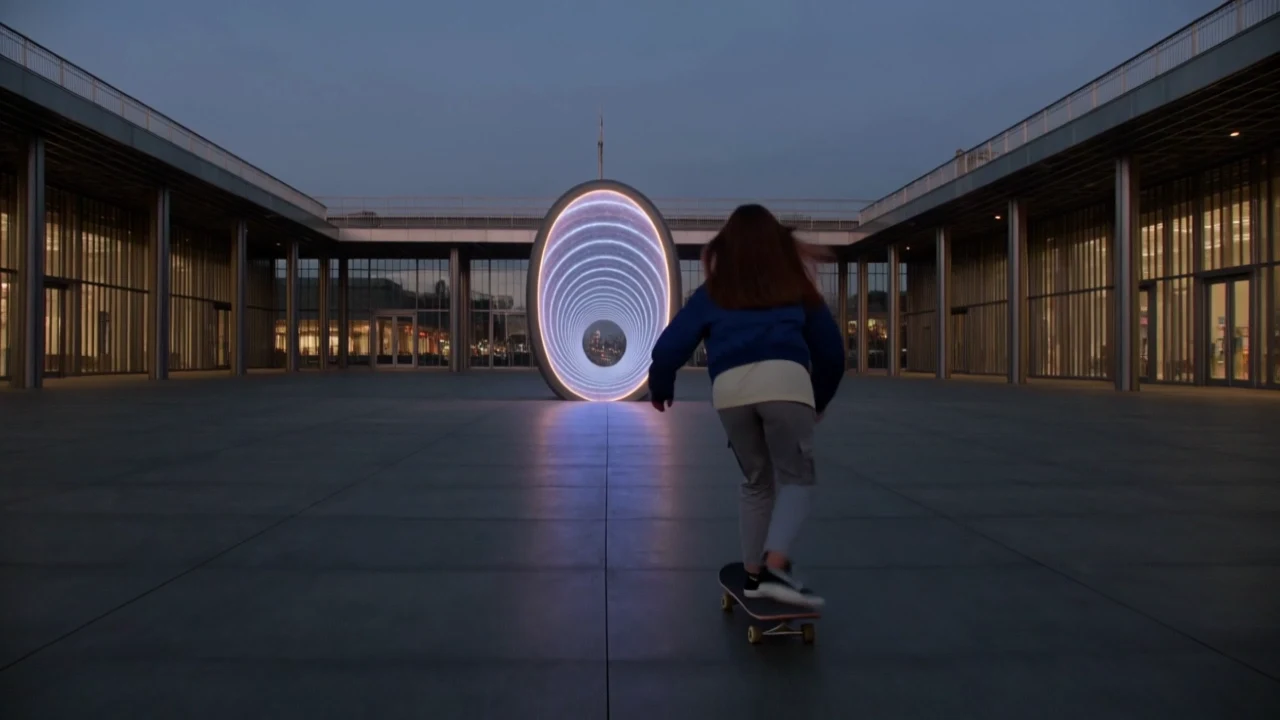
MiniMax H3 ImageAI Image Generator & Editor
Turn a written brief or a reference photo into your next image. Create photorealistic scenes, explore a new outfit, and edit backgrounds with output options up to 4K.
Image examples created with H3 Image in VibePaper. The animated background uses a separate video model.
One reference. New possibilities.
Generate from text. Refine with a reference.
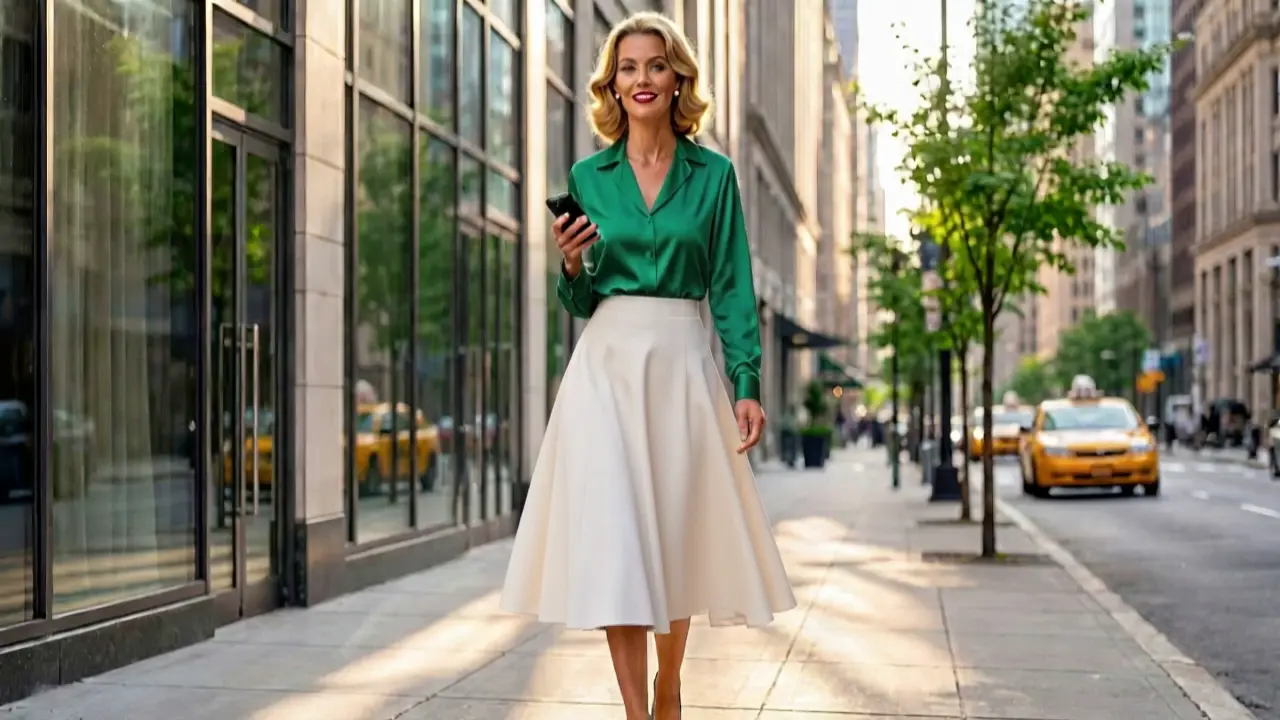
Motion examples use a separate video model. MiniMax H3 Image generates and edits the still images in this workflow.
Edit your image with a prompt
Use MiniMax H3 Image as an AI image editor with prompt-based control. Upload a reference photo and describe a new outfit, background or weather. Compare the result with your source to check the person and scene details.
Choose a version to explore the edit and its example prompt.
View the example prompt
Edit the reference image. Change the outfit to an emerald-green silk blouse and an ivory A-line skirt. Preserve the same person, phone, pose and city street. Match the original lighting and camera framing.
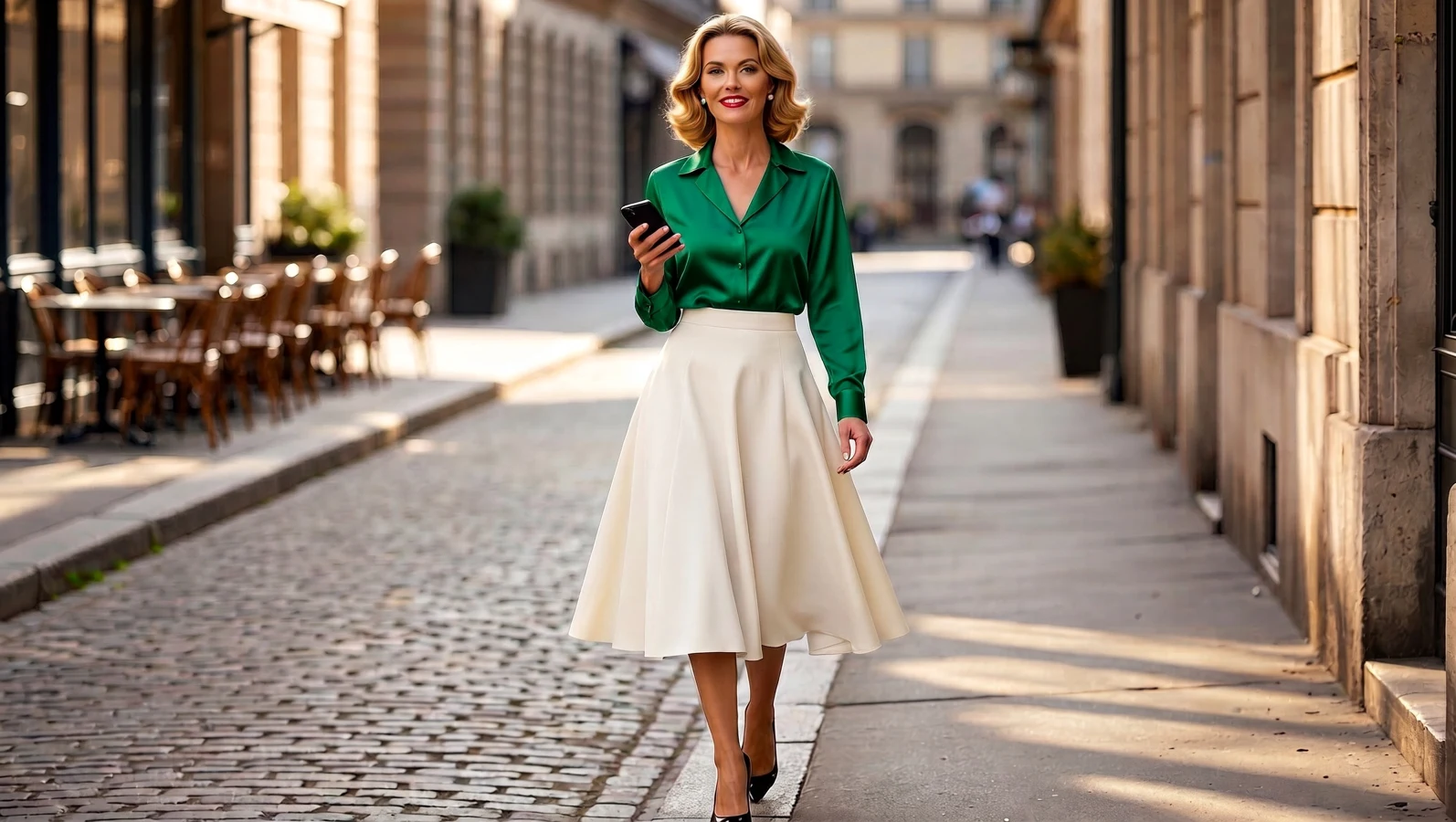
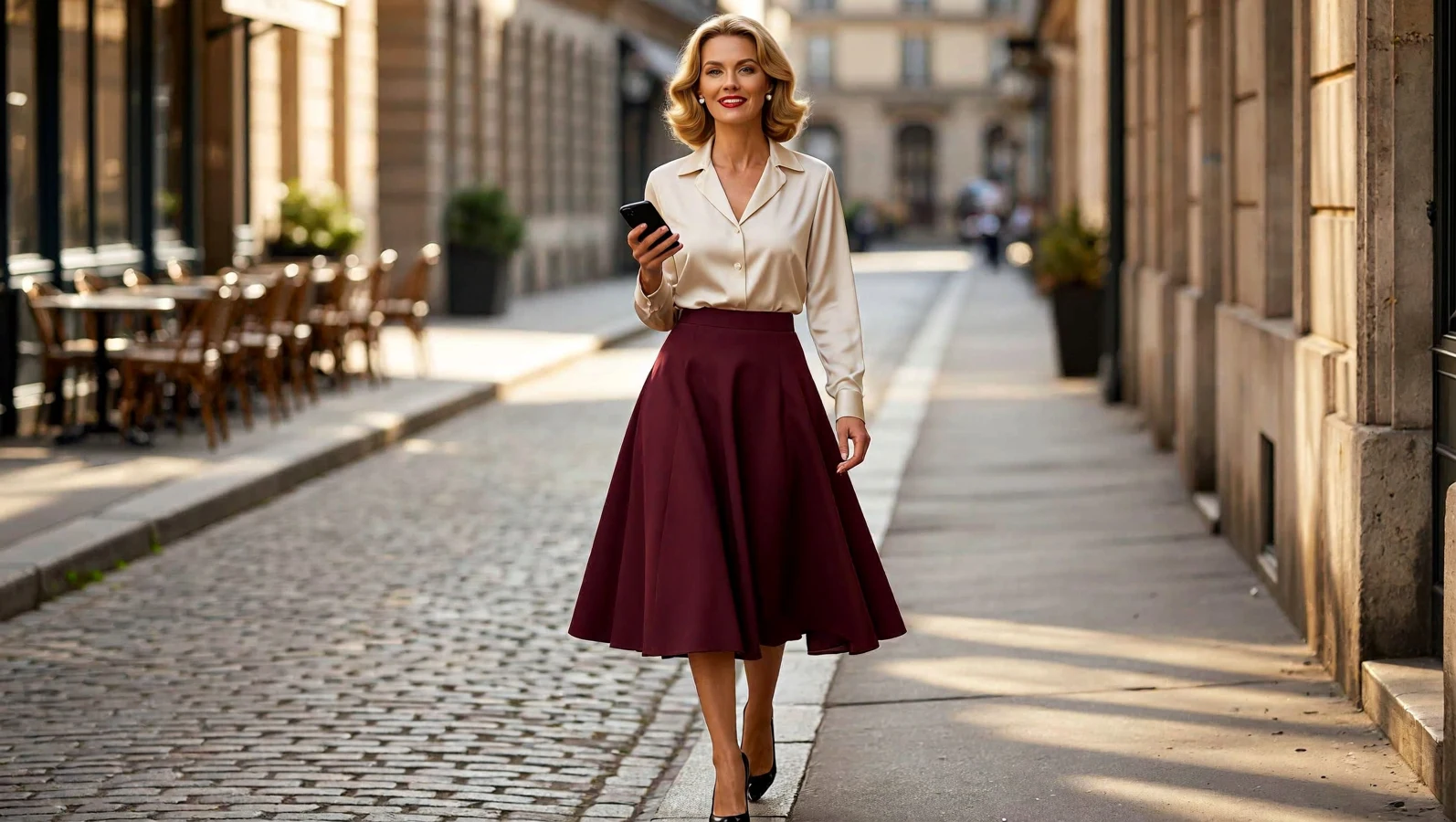
Reference and edited still supplied from the H3 Image workflow. The prompt below is an example brief for trying a similar edit.
An AI clothes changer tool for new outfit ideas
Use H3 Image as an AI outfit changer. Write an AI prompt to change clothes in a photo: name the garments, colors and fabrics, then explain what to preserve. Try a green silk blouse and an ivory skirt while keeping the same person and setting. Drag the divider to compare the reference with the outfit edit.
View the example prompt
Edit the reference image. Change only the outfit to an emerald-green silk blouse and an ivory A-line midi skirt. Preserve the same woman, facial features, hairstyle, smartphone, pose, camera angle and European street. Keep natural fabric folds and lighting consistent with the scene.
The prompt opens in workspace with H3 Image selected. Add the reference images there before generating.

A photorealistic AI image generator from text
Start without a reference: describe your subject, location, lighting and composition. Build a fashion portrait, a campaign concept or a scene from a written brief. Specify fabric, skin texture and camera framing, then review the generated details before refining your image.
View the example prompt
Create a cinematic scene of an adult traveler discovering a miniature canal city. Place the crouching traveler on the right, with a tiny tram, stone bridges, copper roofs, market stalls and residents in the foreground. Keep the scale consistent. Warm sunlight, atmospheric mist, detailed architecture, rust-red coat and muted teal shadows. Leave calm sky in the upper center for a website headline.
An image-to-image generator guided by your references
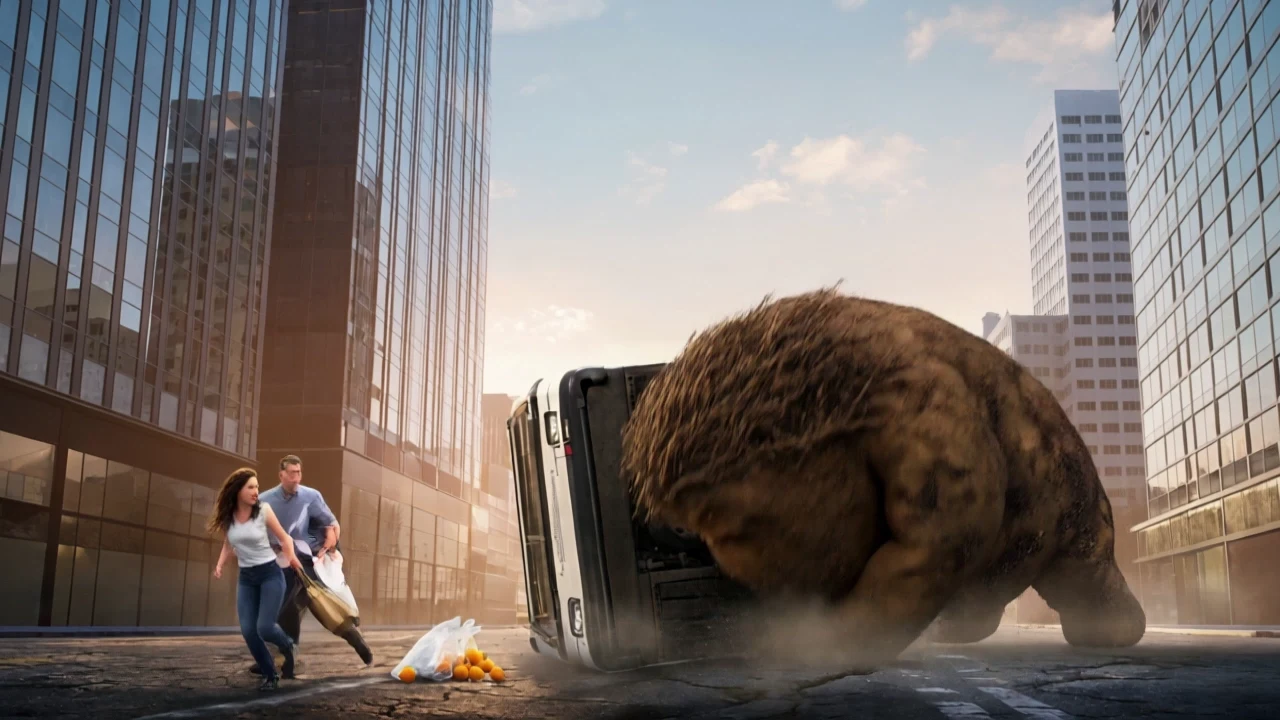
Use MiniMax H3 Image as an AI image generator with reference image support. Start with a photo of your subject and describe the new background, style or layout. Combine up to 16 references for more complex compositions, giving each image a clear role. Compare faces, proportions and small details across edits.
Create with H3 ImageAnimation uses a separate video model. H3 Image creates and edits still images.
Create with MiniMax H3 Image
Image generation for stories, design and products

Character scenes and worldbuilding. Describe a character, environment and task. Guide the scale, materials and light to build a detailed visual story.

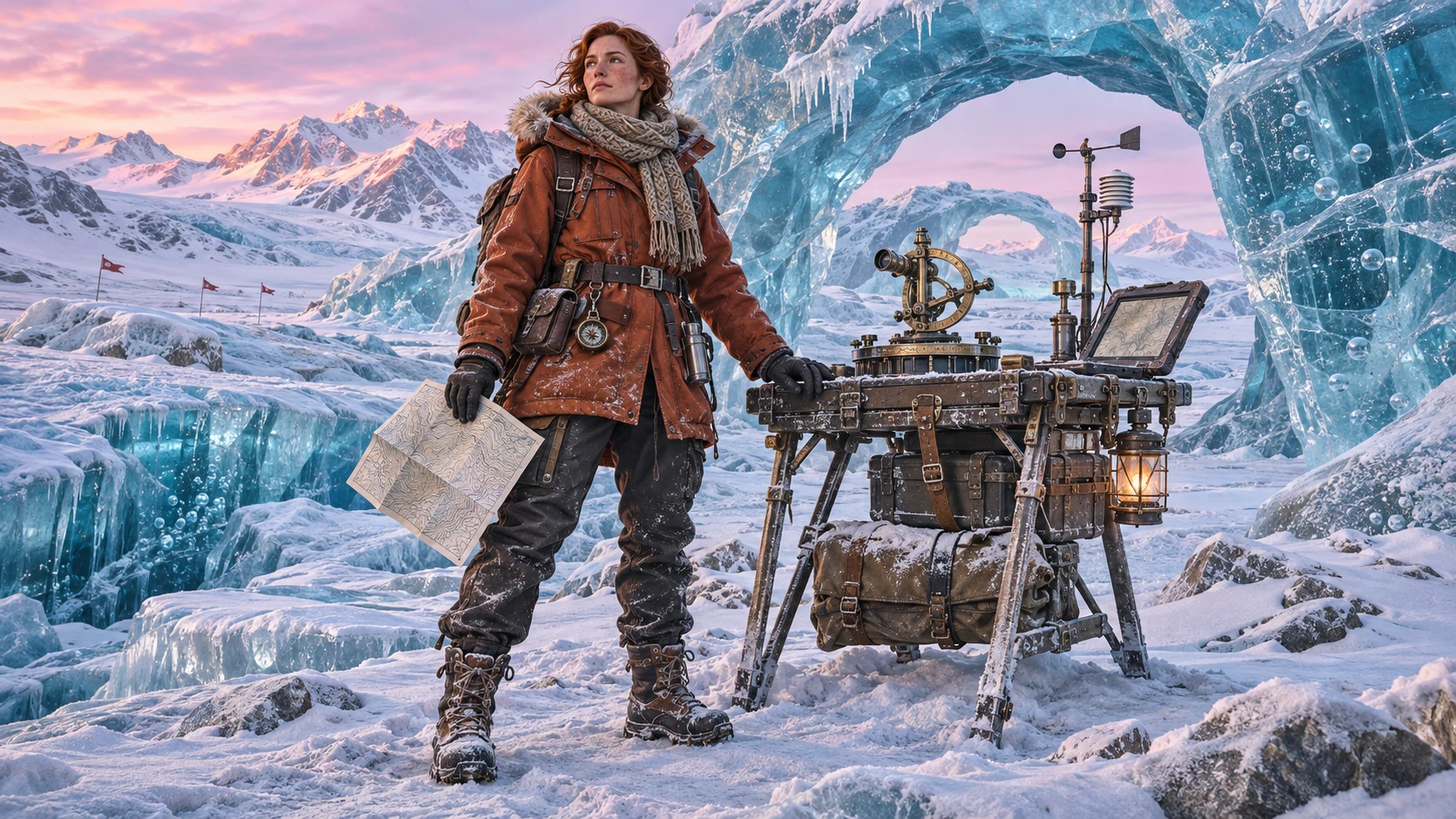
Illustrative artwork generated for this page with a separate image tool. Try the scene ideas in H3 Image; results will vary.
Make it your own
How to use MiniMax H3 Image online
- Reference workflow1
Choose H3 Image and write a prompt
Open MiniMax H3 Image in workspace. For text-to-image generation, describe the subject, setting, lighting and composition. For an edit, state the change and the details to preserve.
- Reference workflow2
Add references and choose the output
For image-to-image editing, upload the source photo. Add other references if needed and explain their roles. Choose your aspect ratio, resolution and output count before checking the quote.
 Reference workflow3
Generate, review and refine
Check the credit quote and generate. Inspect the details, download the image you choose, or use it as a reference for another edit.
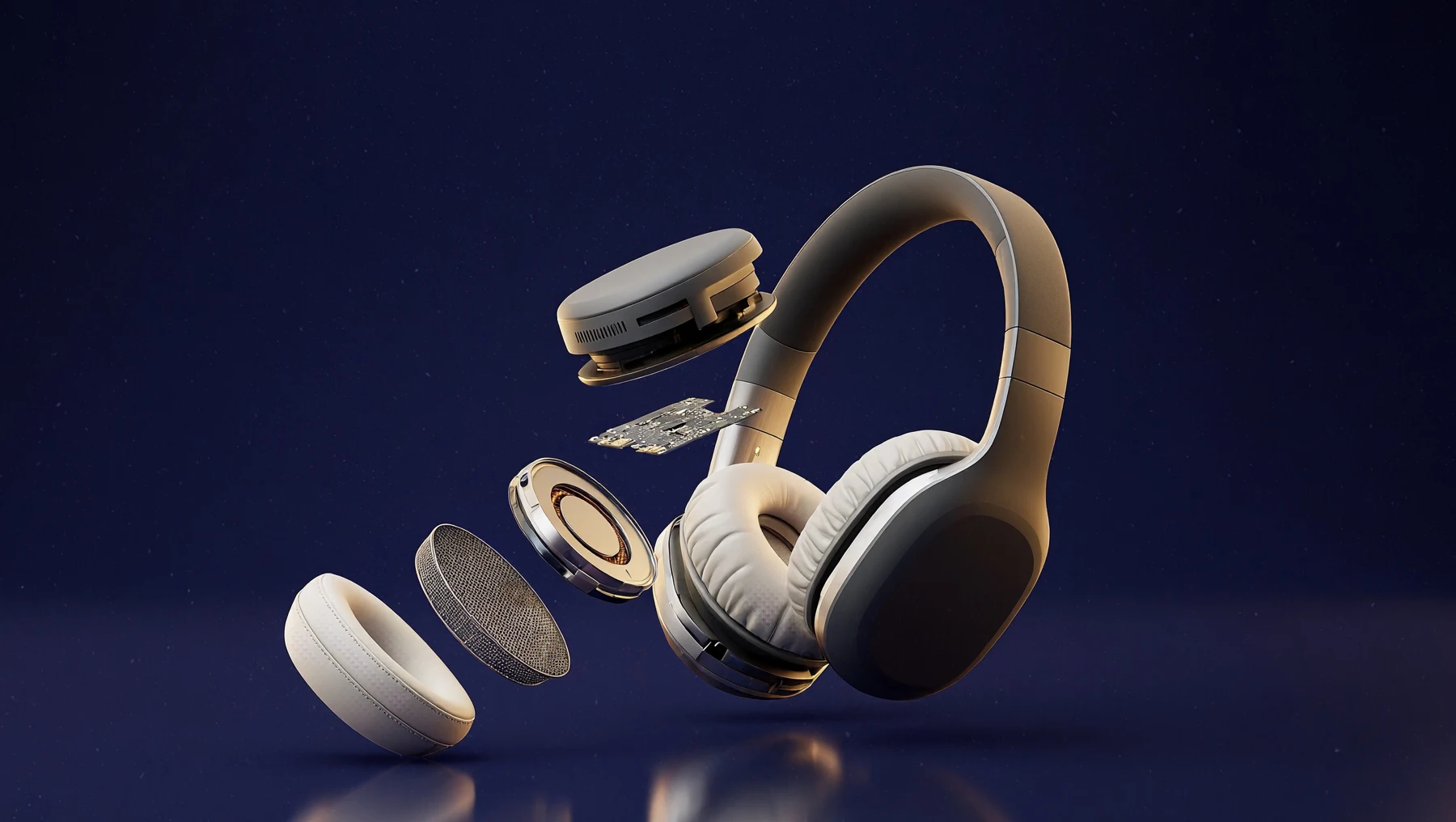
H3 Image stills illustrate this workflow; these are not screenshots of the generator.
MiniMax H3 Image FAQ
Online use & pricing
What is MiniMax H3 Image?
MiniMax H3 Image is a still-image model from MiniMax. It creates images from text and edits images with references. It is separate from the MiniMax H3 and H3 Max video models.
Can I use MiniMax H3 Image online?
Yes. Choose MiniMax H3 Image in VibePaper workspace to generate from a prompt or add reference images. You do not need to install a local model.
Is MiniMax H3 Image free in VibePaper?
Generation uses VibePaper credits and requires an eligible membership. H3 Image requires Pro; H3 Image Highspeed requires Basic. Check your account and the current quote before generating.
Can I use the results commercially?
Check the applicable MiniMax license, your provider terms and the rights to any references you upload. Open weights do not mean unrestricted use in every market.
Image generation & editing
Can I edit an image with a prompt?
Yes. Upload a source image and describe what to change, such as the outfit, background or weather. An effective image editor prompt also names what to preserve: the person, pose, camera angle or product shape. H3 Image returns a new still image; inspect it because details can change.
What prompt should I use to change clothes in a photo?
Name the new outfit and what to preserve. For example: change the blouse to emerald silk and the skirt to ivory, while keeping the same person, face, pose, phone and background. Use the source photo as a reference and compare the result with it.
Can AI change the background while keeping the person?
Use the original photo as a reference and describe both the new location and the person you want to retain. Include lighting and perspective in the brief. H3 Image can attempt the edit, but it does not guarantee identical facial features or small details across versions.
How many reference images can I use?
You can add up to 16 reference images. Give each a clear role, such as the person, outfit, color palette or setting. Keep the instructions consistent across references, and compare the result with the source images rather than assuming every detail is locked.
Can H3 Image create posters, typography and infographics?
As an AI magazine cover generator, H3 Image can explore visual drafts with a clear layout, text hierarchy, palette and exact wording for short titles. Check spelling, tiny text, chart values and labels manually. Use a design or charting tool for final typesetting and accurate data; a convincing graphic is not proof that its numbers are correct.
Can H3 Image create product diagrams?
Create AI product images from text, or use H3 Image as an AI product photo editor with your own reference. MiniMax also demonstrates exploded views and multi-view concepts. Treat each AI product image as a visual draft, then check the product shape, components, dimensions and labels.
Does MiniMax H3 Image generate video?
No. H3 Image is a dedicated still-image model. Some older community workflows generate a short H3 video sequence and extract one frame; their frame-count and batch-index settings do not describe H3 Image. Check the exact model or checkpoint when comparing results. This page uses a separate video model to animate the still-image examples.
Resolution & quality
Can I use H3 Image as a 4K AI image generator?
Yes. H3 Image offers 1K, 2K and 4K output area presets. A square 4K image is approximately 4096 by 4096 pixels; other aspect ratios use different widths and heights. Select the resolution in the generator and check the actual dimensions of your download. The page previews are compressed for the web.
How long does MiniMax H3 Image take to generate an image?
Generation time varies with resolution, output count, hardware, implementation and service load. A timing shared for a local H3 video frame-extraction workflow is not a benchmark for the dedicated H3 Image model or a delivery-time promise in VibePaper. Compare speed using the same model, output dimensions and settings.
Why can faces or small details look soft or inconsistent?
A small face, unclear reference or broad edit can lose detail. Try tighter framing, a clear reference and a more specific instruction, then inspect the full-resolution download. Check hands, object counts, contact points and reflections separately. Higher resolution alone does not guarantee natural skin or correct geometry.
ComfyUI & local setup
Can I run MiniMax H3 Image in ComfyUI?
Yes. ComfyUI provides native H3 Image workflows, and MiniMax publishes the weights on Hugging Face. Use the dedicated image checkpoint and a compatible workflow; older H3 video graphs are a different setup. Local hardware requirements vary with model precision and resolution. VibePaper offers an online option without local installation.
Official H3 Image model and local setupWhere can I find H3 Image workflows and prompt examples?
Open the prompt examples on this page to send a brief to VibePaper workspace with H3 Image selected, then add your reference images before generating. For a local workflow, start with the official native ComfyUI templates for the dedicated H3 Image model rather than an older H3 frame-extraction graph.
Official ComfyUI H3 Image workflowsWhat does MiniMax H3 Image Conditioning mean?
In ComfyUI, the conditioning node prepares the prompt and reference-image inputs that guide generation. Follow the native template for its image order and VAE connections. In VibePaper, add references in the generator and explain their roles; you do not need to assemble a local node graph.
What is MiniMax H3 Image PE, and do I need it?
PE means prompt expansion. MiniMax provides a separate helper that expands a short request into a more detailed image description. It is not the image generator itself. You can write a detailed prompt directly; if you use an enhancer, review its additions so it does not change your intended subject or edit.
Official H3 Image prompt expansion modelCan I use H3 Image on a low-VRAM GPU or with GGUF?
Local requirements depend on the checkpoint format, precision, resolution and inference software. Follow the requirements for the exact workflow you download; a GGUF filename alone does not establish compatibility or quality. Check samples at full resolution when comparing quantized and full-precision versions. VibePaper is an online option that does not require you to download model weights.
Do MiniMax H3 video LoRAs work with H3 Image?
Do not assume compatibility from the H3 name alone. Choose an adapter that explicitly names the H3 Image base checkpoint and a compatible workflow. Results reported for H3 video or a third-party still-image pipeline do not validate that adapter for the dedicated image model. LoRA setup is a separate local workflow and is not required for reference editing in VibePaper.
Is reference editing the same as masked inpainting or outpainting?
No. Reference editing guides a new image with source images and instructions. Masked inpainting targets a selected region, while outpainting extends the canvas. Do not assume a workflow has mask or canvas controls just because it accepts references. Choose a workflow that explicitly provides those controls when your edit needs them.
Create your next image with MiniMax H3 Image
Start from text or bring a reference photo. Generate a scene, try a new outfit, or describe the next edit in VibePaper workspace.
Create with H3 Image