
Wan 3.0AI video generator with sound
Up to 30 seconds in one take, with speech, effects and music made in the same pass. Start from a prompt or from two frames.
No watermark. You see the price before you generate.
What it does
Wan 3.0 features: long takes with sound
One take that keeps moving for 30 seconds
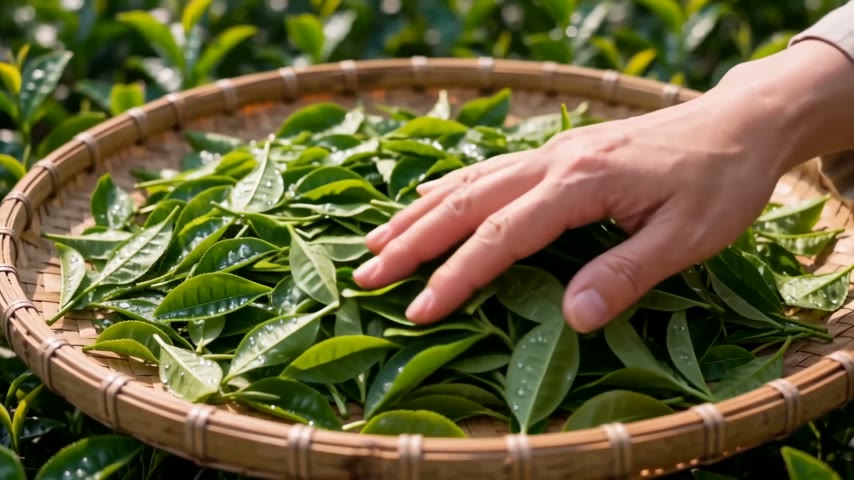
Most video models stop at 10 or 15 seconds. Wan 3.0 runs up to 30 in a single generation, long enough to write a whole walk into one prompt: a drop over the terraces, a tea picker, a row of drying trays, a pavilion, a cup. Shorter takes cost less, so find the framing first and lengthen it after.

Two voices, two languages, one path
A tea picker and a traveler walk down a stone path, one speaking Mandarin and one English. Wan 3.0 generates the voices, the footsteps and the wind with the picture. Write each line with a name, a tone and a language.

Several shots in one prompt
Write shot 1, shot 2 and shot 3, each with its seconds, and Wan 3.0 cuts between them. In this 15 second clip the cuts land at 5 and 10 seconds, as written. Keep the same words for the place and the light in every shot so the day reads as one.
Start generating
Built for
Wan 3.0 for ads, stories and social video

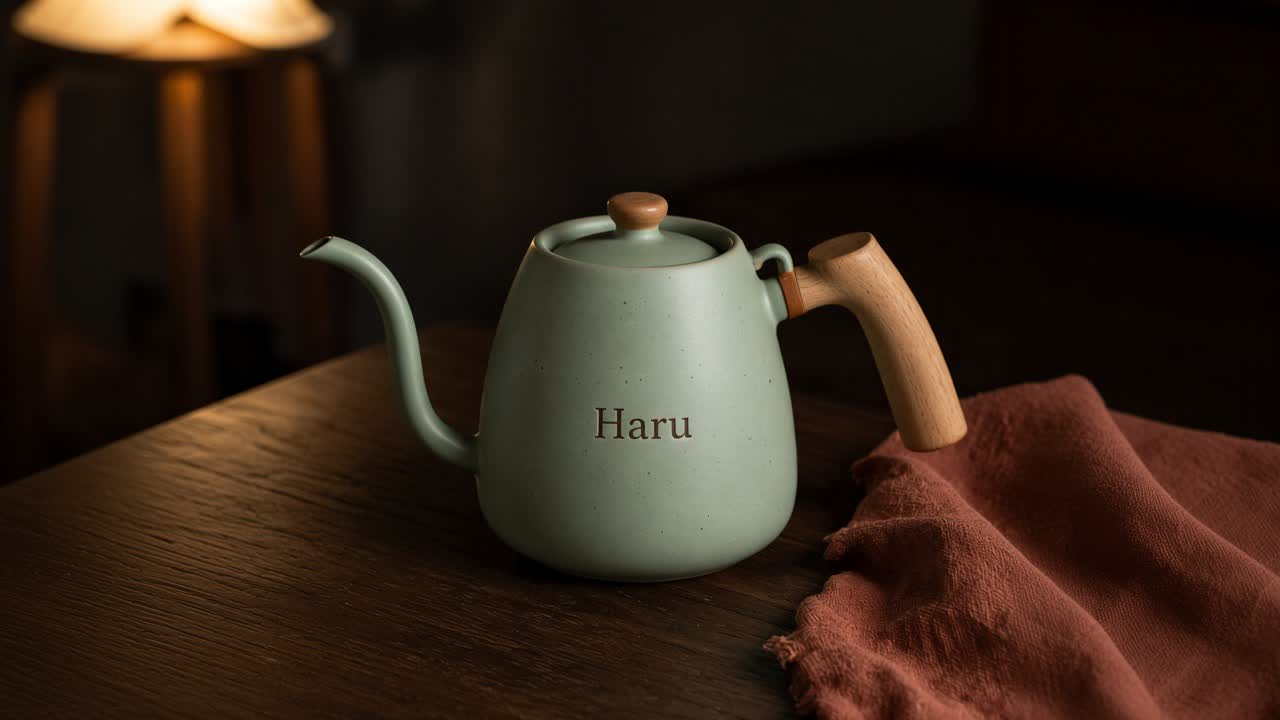
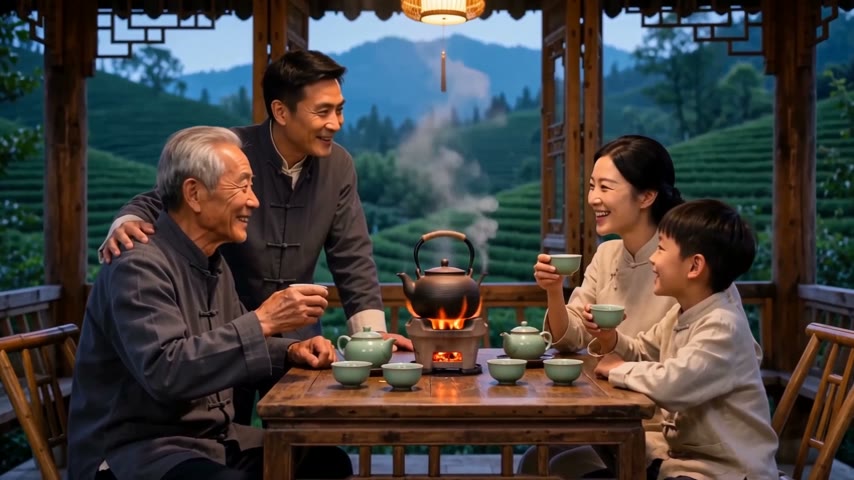
Product and craft. Dry leaves opening in a celadon cup, then a slow pull back to the window. A close shot and a wide shot in one take, with the pour on the track.

- Developer
- Alibaba
- Length
- 2 to 30 seconds per generation
- Resolution
- 480p, 720p or 1080p
- Start from
- A text prompt, or a first and last frame
- Sound
- Speech, effects and music generated with the picture. Can be turned off
- Aspect ratio
- Auto, 1:1, 3:4, 4:3, 9:16 or 16:9
- Where to use it
- Paper Gen and the canvas in VibePaper
Made with Wan 3.0
Start generating

Wan 3.0 questions: length, sound, shots and resolution
What is Wan 3.0?
Wan 3.0 is a video model from Alibaba. It generates 2 to 30 seconds of video with sound in one pass, from a text prompt or a first and last frame. In VibePaper it runs in Paper Gen and on the canvas.
How long can a video be, and at what resolution?
Each generation runs 2 to 30 seconds at 480p, 720p or 1080p. Test a take at 480p to save credits, then generate the one you like at 1080p. A 30 second take costs more than a 10 second one, so settle the framing on a short take first.
Does Wan 3.0 generate sound?
Yes. Speech, ambient sound, effects and music are generated with the picture. The sound switch is on by default and can be turned off. Check the voices before you publish, since sound quality still varies from take to take.
Can it cut between several shots?
Yes. Write the shots as shot 1, shot 2 and shot 3 with the seconds of each, and make the seconds add up to the length you set. In our 15 second test the cuts landed at 5 and 10 seconds. Leave the shot list out and you get one continuous take.
Can I use a first and last frame?
Yes. Add one image as the first frame and one as the last, and describe the move between them in the prompt. Wan 3.0 starts from your images instead of from words alone.
Can I add reference images or extend a clip?
Not in VibePaper yet. Wan 3.0 here starts from a prompt or a first and last frame. For up to 9 images, 3 videos and 3 audio clips as references, use Seedance 2.0, and for longer stories try Seedance 2.5.
Which aspect ratios does it support?
Auto, 1:1, 3:4, 4:3, 9:16 and 16:9, so one model covers vertical social video, square posts and widescreen.
Why was my prompt refused?
Prompts that name a known film, song, artwork or real person can be refused. Describe original characters and places in your own words instead.
Can I use the videos commercially?
Yes. Videos download without a watermark, and you can use them in ads, client work and social channels. You are responsible for any images you upload as first or last frames.
Guides and Model Briefs from Our Blog
Practical guides and plain-language briefs on the models you can use here: what each one is good at, how to prompt it, and how to get a better result on the canvas.