
Seedream 5.5 Image to Layers
Generate and edit images with Seedream 5.5. Explore the FORM / 26 poster to see how its text, artwork, and background are layered. Live layer splitting and PSD export are not available here.
A landscape poster with bold typography, an orange flower, and a cobalt-blue background.
FORM / 26What can you do with an image split into layers?

Split an image into editable layers
An AI image layer splitter separates a flat image into parts such as the background, product, and headline. Reassembling those parts in their original positions lets you hide or move individual elements while keeping the layout visible.
Open Layer demo and try the FORM / 26 poster. Turn off Artwork to hide the glass flower and its accents, then toggle Text and Background separately.
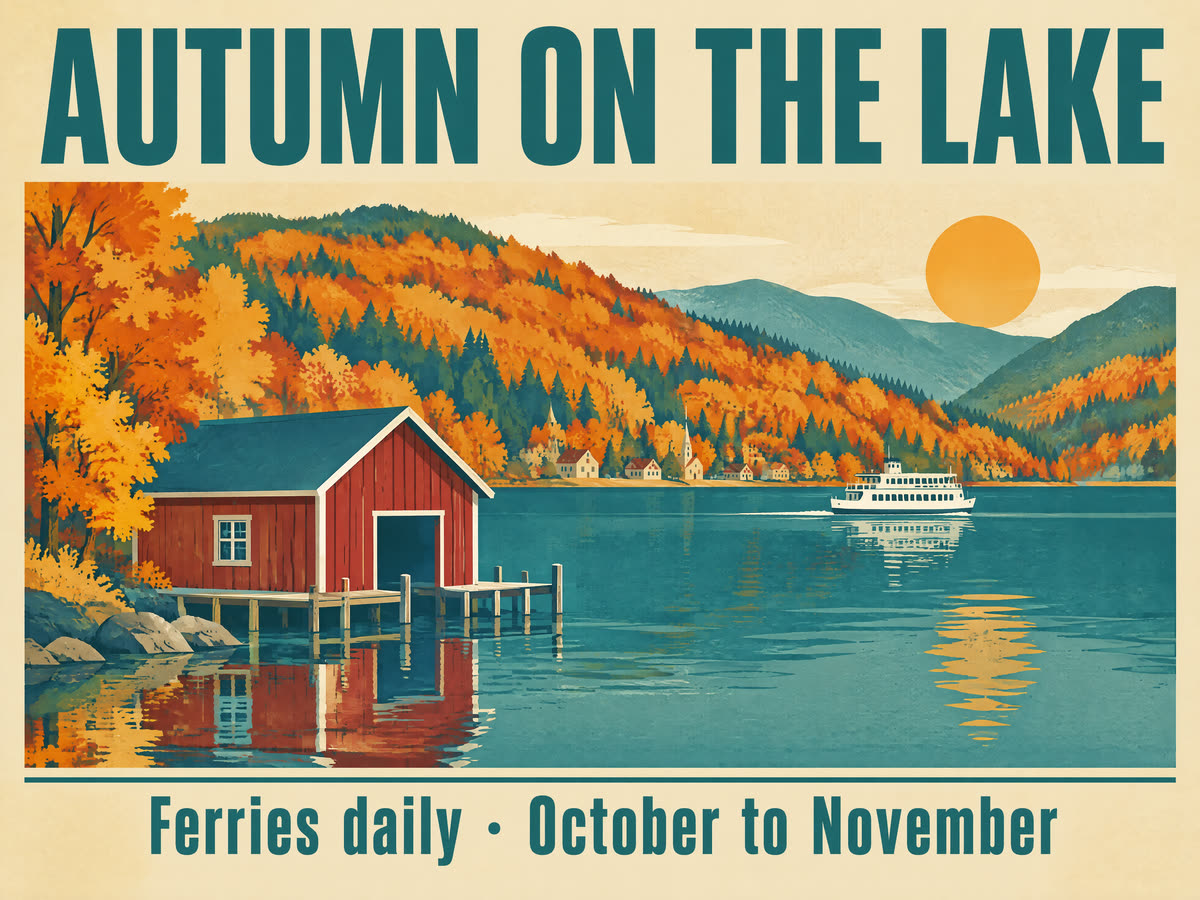
Edit text in an AI-generated poster
A separate headline lets you update campaign copy without changing the subject. Try hiding the Text layer in the FORM / 26 example to see what remains.
When working with an imported image, text recognition can identify the words and approximate their styling. The editor needs to turn that information into a text object before you can type over the headline.

Replace a product photo without rebuilding the layout
For an e-commerce campaign, you may want to keep the same headline placement and background across products. A separate artwork layer makes it easier to replace the subject while retaining the rest of the layout.
For a real campaign, check the replacement’s crop, scale, and shadow before publishing, especially when the product shape changes.

Create transparent PNG assets for product designs
Seedream 5.5 can generate images with native RGBA transparency from a text prompt or reference images. Use a transparent product cutout, sticker, or icon as a reusable element across layouts.
This page currently offers standard image generation and reference editing, without a transparent-output setting. Check soft shadows, reflections, and translucent edges against both light and dark backgrounds when working with transparent assets.

Refine an image across multiple edits
Seedream 5.5 is designed to preserve the subject, composition, and visual style between edits. For a product campaign, change the backdrop first, then adjust the lighting and compare each version against the original.
When using several references, give each one a role in the prompt. Use one for the product shape, another for the background, and a third for the lighting or color palette.
Image-to-layers workflow examples
These examples illustrate the kinds of assets you can use in a layered design.


How to use the image-to-layers poster demo
Open the prepared poster
Choose Layer demo in the tool above. It uses a prepared poster, separate from your generated images.
Inspect the separate layers
Toggle Text, Artwork, and Background to see how each part contributes to the poster.
Compare with the complete poster
Use Compare original to show all three layers, then return to your current selection.
Seedream 5.5 FAQs
Which model does the Generate tab use?
Generate and Edit image both use Seedream 5.5. The Layer demo tab uses a prepared sample and does not call a layer-splitting model.
How does Seedream 5.5 compare with Seedream 5.0 Pro?
Volcano Engine lists support for up to ten reference images in both models. For layer splitting, 5.5 can return a base image plus up to 99 layers, compared with a base image plus up to 16 for 5.0 Pro. The 5.5 model also adds rich-text recognition for supported layers and can generate transparent images from a text prompt.
What does Seedream 5.5 return when it splits an image?
Volcano Engine documents a base image plus up to 99 separate layers. For supported text layers, it can return the text, position, and approximate styling.
Can I edit the text after splitting a poster?
When text is recognized, a design editor can use the returned information to reconstruct it. Check the font and placement, especially for stylized lettering.
Can I split my own image on this page?
No. The Layer demo tab uses a prepared poster sample. You can generate and edit your own images in the other tabs, but live layer splitting is unavailable here.
What is the difference between image to layers and image to PSD?
Image to layers separates the contents of a flat image. Image to PSD describes the file you download. A basic converter can put the whole image in one Photoshop layer. A layered PSD keeps individual elements separate for editing.
Can I export an image to PSD with editable text layers here?
This page does not export PSD. A layered PSD can contain separate image layers while the title is still made of pixels. To edit the words in Photoshop, the file needs a native text layer.
Does a transparent PNG preserve editable layers?
A single transparent PNG contains one image with transparency. To edit the parts separately, you need the individual layer images or a layered document.
How can I get cleaner layers from a product poster?
Start with a clear separation between headline, product, and background. When those elements overlap, inspect the edges and the area under the product before replacing it.
Edit your own poster in VibePaper
Bring an image into Canvas and use the existing Design tools to work with its parts.