Skip to content
VibePaper

Video to Video AI: Restyle Any Video

Keep every shot and performance, change the look. Restyle Studio turns your video into clay, pixel art, watercolor, or retro 80s animation, or any style you describe. Preview one frame first, then restyle the whole video.

Key features of AI video restyle

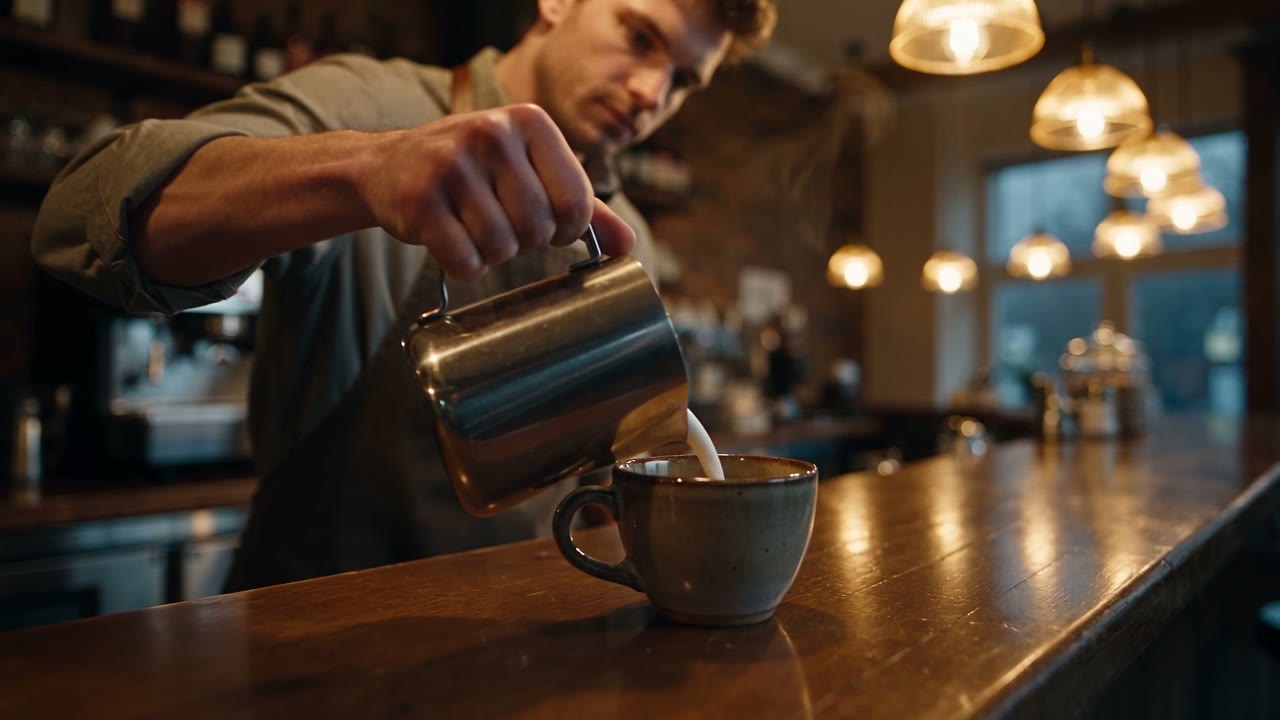
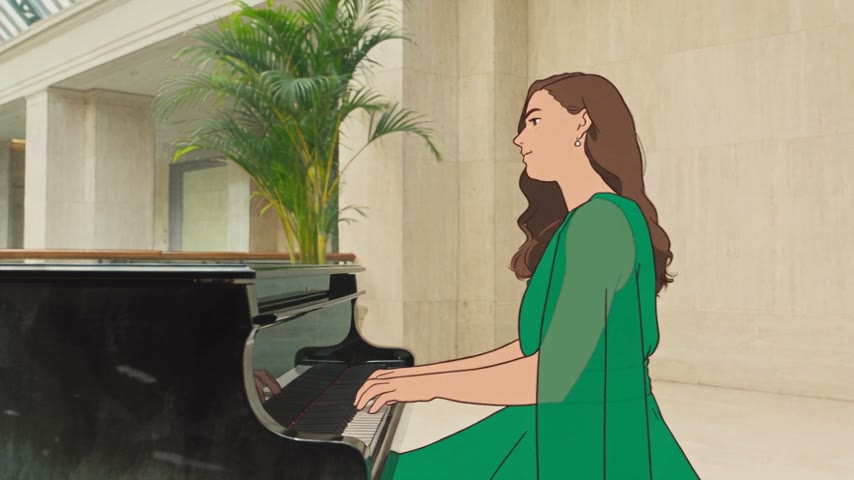
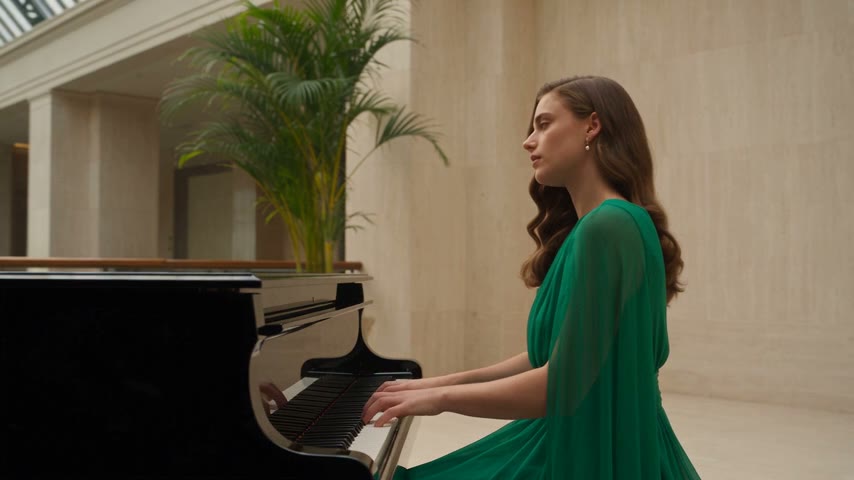
Source2D animation
01

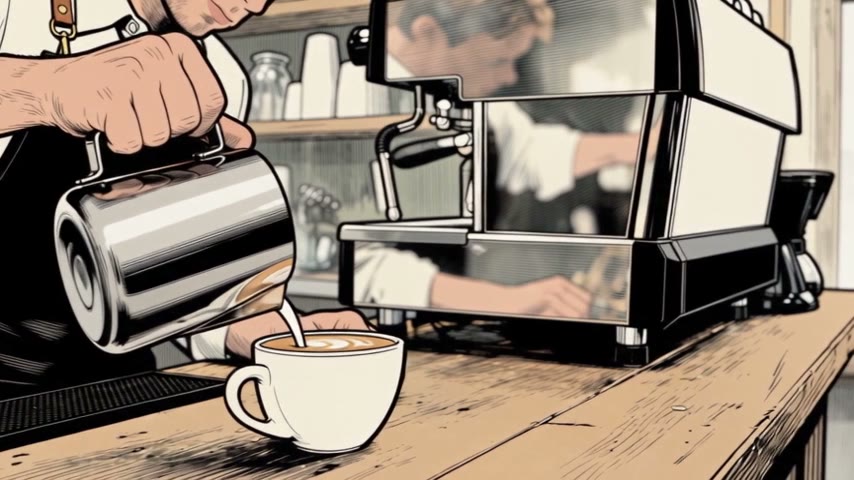
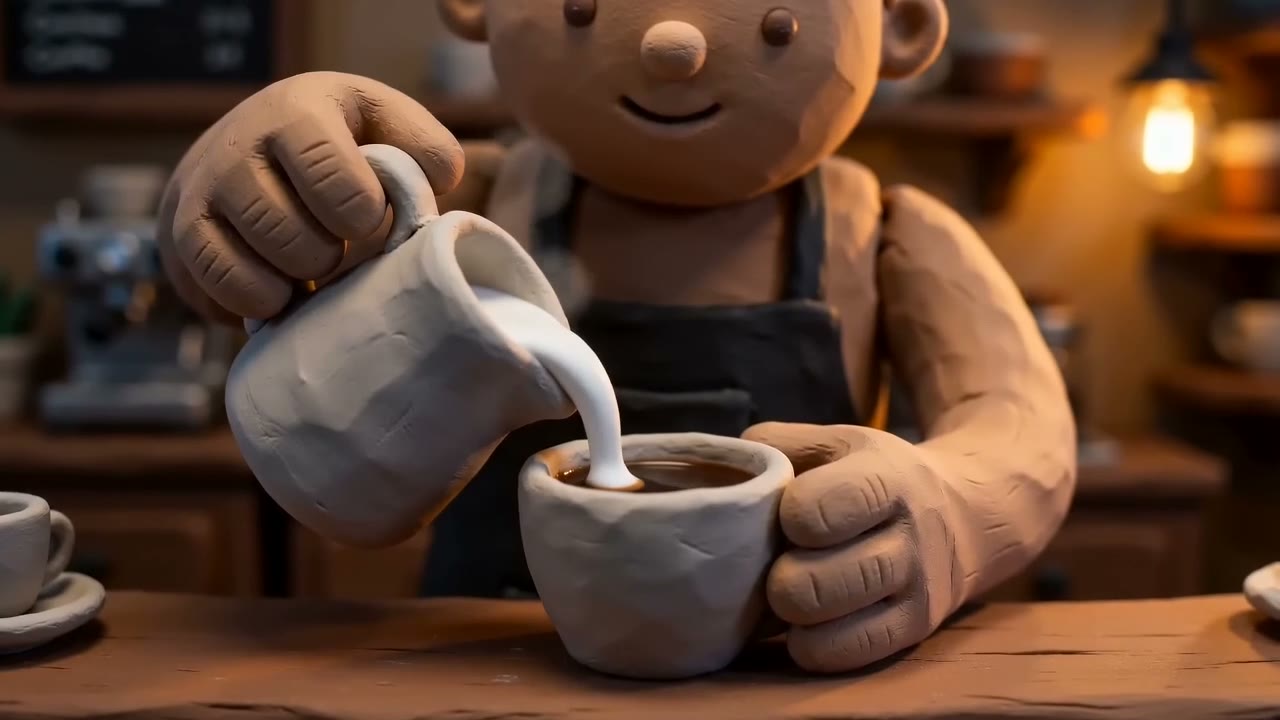
Turn a video into clay, pixel art, watercolor, or retro anime

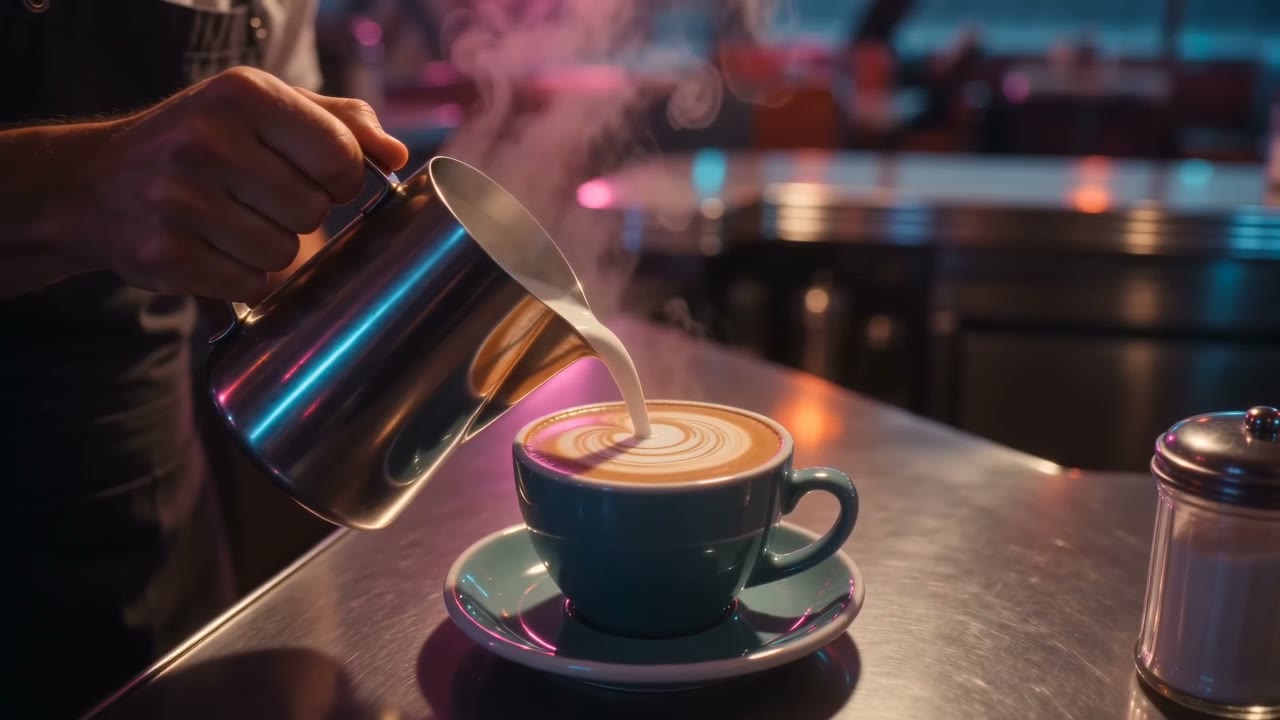
Pick a style and Restyle Studio redraws the whole video in it. Four presets are ready to use: clay blind box, 8-bit pixel art, watercolor, and retro 80s. For a look of your own, describe it in words or upload a reference image. The reference only sets the rendering, materials, and palette; its people and composition are not copied.

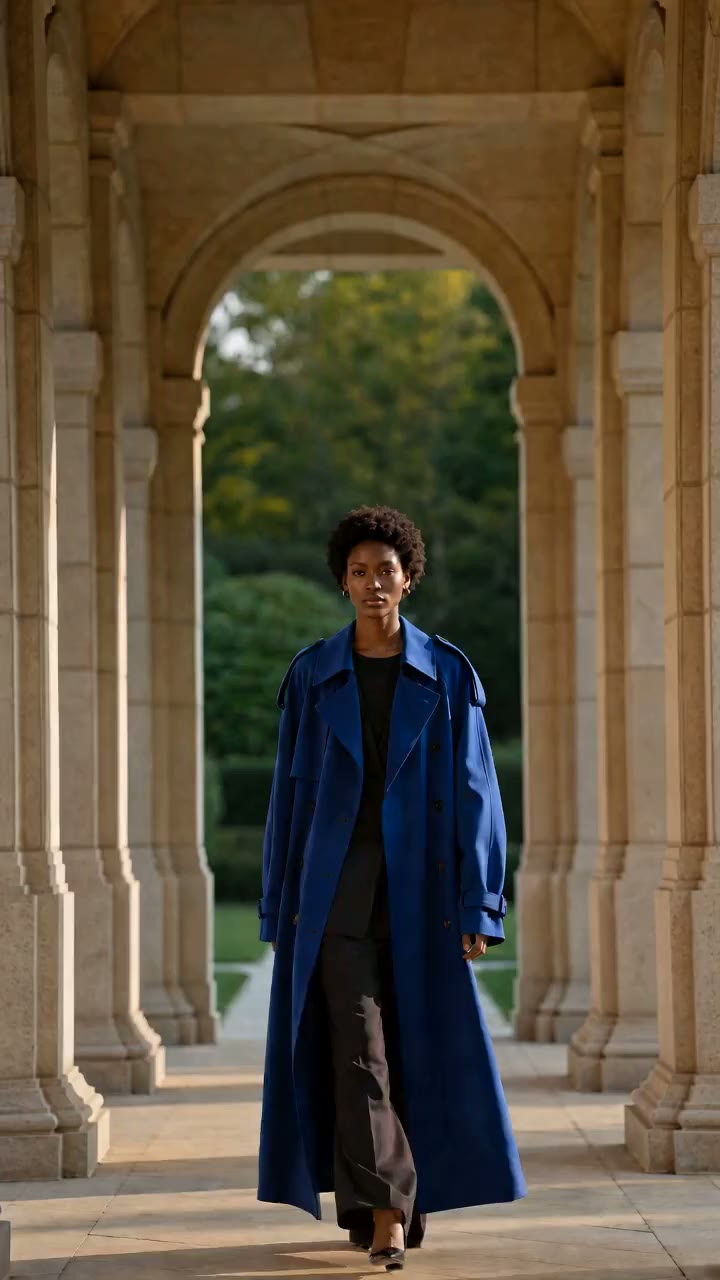
The composition, poses, and actions of each shot stay the same. Only the look changes, so the result still plays like your original cut. Whether you want a cartoon look, 2D animation, or a full style transfer, the original pacing and performances stay intact.
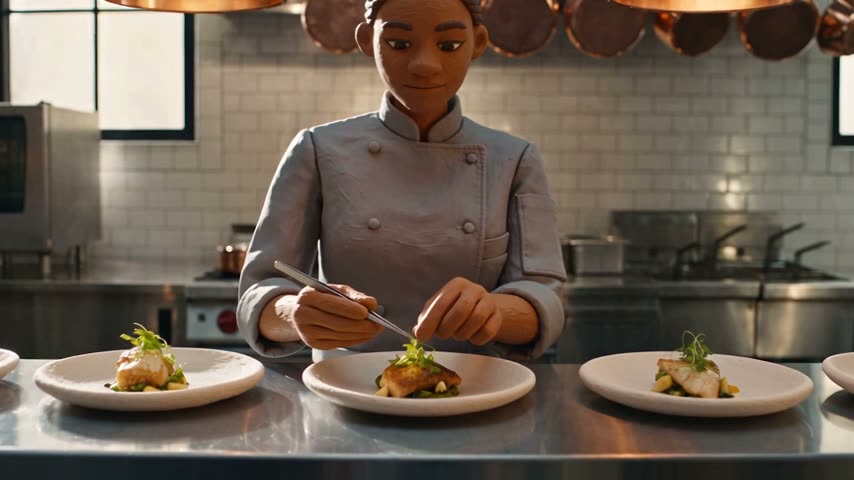

SourceClay
02

Preview one frame, then restyle the whole video

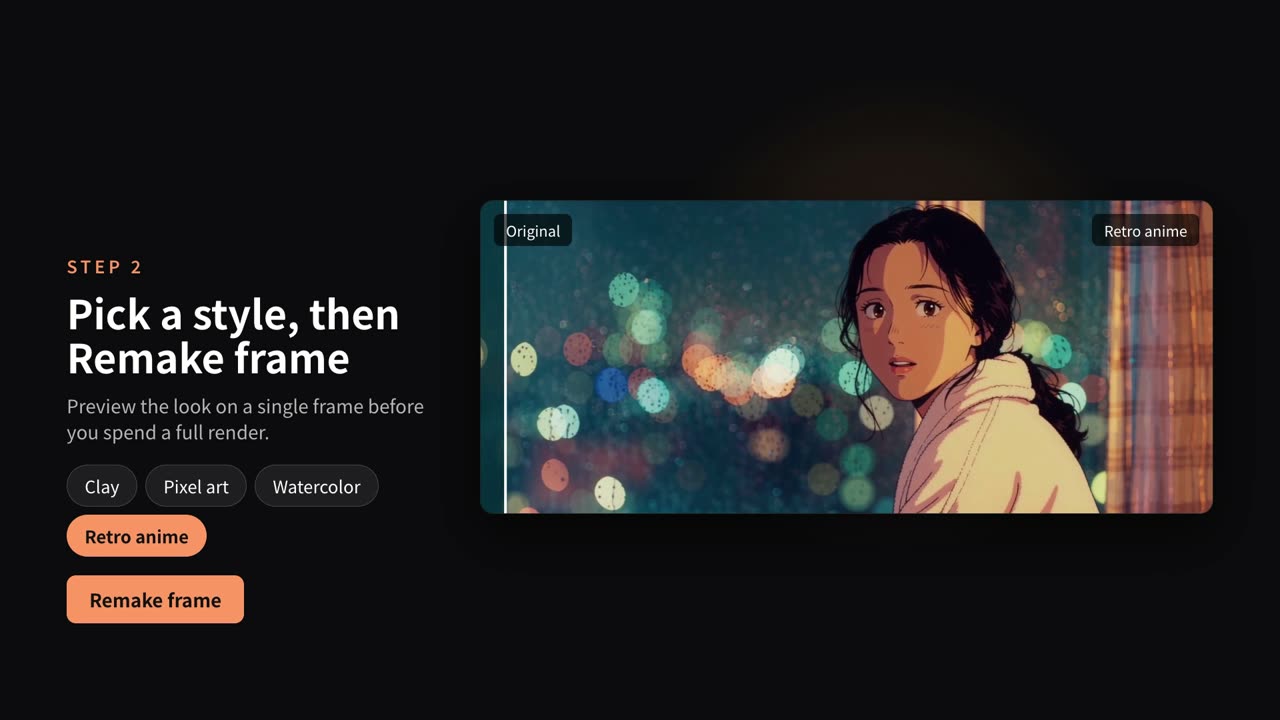
Choosing a style does not start a generation. Use Remake frame first to see a single frame from your video in the new style, next to the original. Change the style or the description until it looks right.

When you are happy, Remake video restyles the entire video. It follows your original footage for the timeline, shots, framing, and actions, then shows the result beside the source with a slider you can drag to compare at any moment.

Source8-bit pixel art
03

See your video broken down shot by shot

Before you restyle anything, Restyle Studio analyzes the whole video and writes out what happens: the framing, the camera movement, the action, and any dialogue, each with its start and end time.

People on screen appear as small thumbnails right in the text. Click one to jump to that moment and highlight every time that person appears, so you know exactly what you are about to restyle. The analysis can be written in English, Chinese, Japanese, or Korean.

How to restyle a video with AI

From the source video to a restyled result in a few steps.

  1. Step 1

    Upload and analyze

    Sign in to Restyle Studio and upload an MP4 or MOV between 15 seconds and 3 minutes long, up to 300 MB. The video is saved to the cloud and analyzed shot by shot.

  2. Step 2

    Pick a style and preview a frame

    Choose clay, pixel art, watercolor, or retro 80s, or describe your own. Use Remake frame to check how a single frame will look.

  3. Step 3

    Remake the video

    Run Remake video, then drag the slider to compare the original with the restyled result.

Guides and Model Briefs from Our Blog

Practical guides and plain-language briefs on the models you can use here: what each one is good at, how to prompt it, and how to get a better result on the canvas.

Read More

Frequently asked questions about video to video AI

What is video to video AI?

It redraws an existing video in a new style, such as a cartoon, anime, or 3D animation, and keeps the story, shots, and performances. Unlike text to video, which invents a clip from a prompt, it starts from footage you already have. It is also called video style transfer or vid2vid.

Which styles can I use?

Four presets: clay blind box, 8-bit pixel art, watercolor, and retro 80s. You can also describe a style in words or upload a reference image, which sets the rendering, materials, and palette without copying its people or composition.

Can I preview before restyling the whole video?

Yes. Remake frame restyles a single frame and shows it next to the original. Remake video, which restyles the entire video, only starts when you run it.

What videos can I upload?

MP4 or MOV, 15 seconds to 3 minutes, up to 300 MB.

Will the restyled video keep my shots and actions?

Remake video follows your original footage for the timeline, shot order, framing, camera movement, and actions, and only changes the visual style. The result is generated, so fine details can differ from the source.

How much does it cost?

Sign in with a VibePaper account. New accounts get 20 free credits on sign-up and 10 more for each daily check-in. Analysis and generation use credits, and the analysis price is shown before you start.

Can I restyle someone else’s video?

Only with permission, and not to impersonate or mislead anyone.

What happens to the videos I upload?

They are used to run your restyle project and are sent to the AI models that generate it, encrypted in transit. Each project stays in your Restyle Studio history, where you can delete it at any time.

Read the privacy policy

By VibePaper Team · Updated

Restyle your first video today

Upload a clip, pick a style, and preview a frame before you restyle the whole video.