VIBEPAPER JOURNAL / INTRODUCING 2.0
IntroducingVibePaper 2.0A new way to create
VibePaper · Updated
Today, we’re introducing VibePaper 2.0. Canvas, Design and Work now operate within one project: connect nodes to create images and video, use editable layers to finish covers and posters, and ask Paper Agent to carry the work forward.
Choose the next step yourself, or let Paper Agent select a mode for the task. It can continue through multiple steps using the project’s materials and conversation. Shots, covers and copy for a film or advertising project can be developed together.
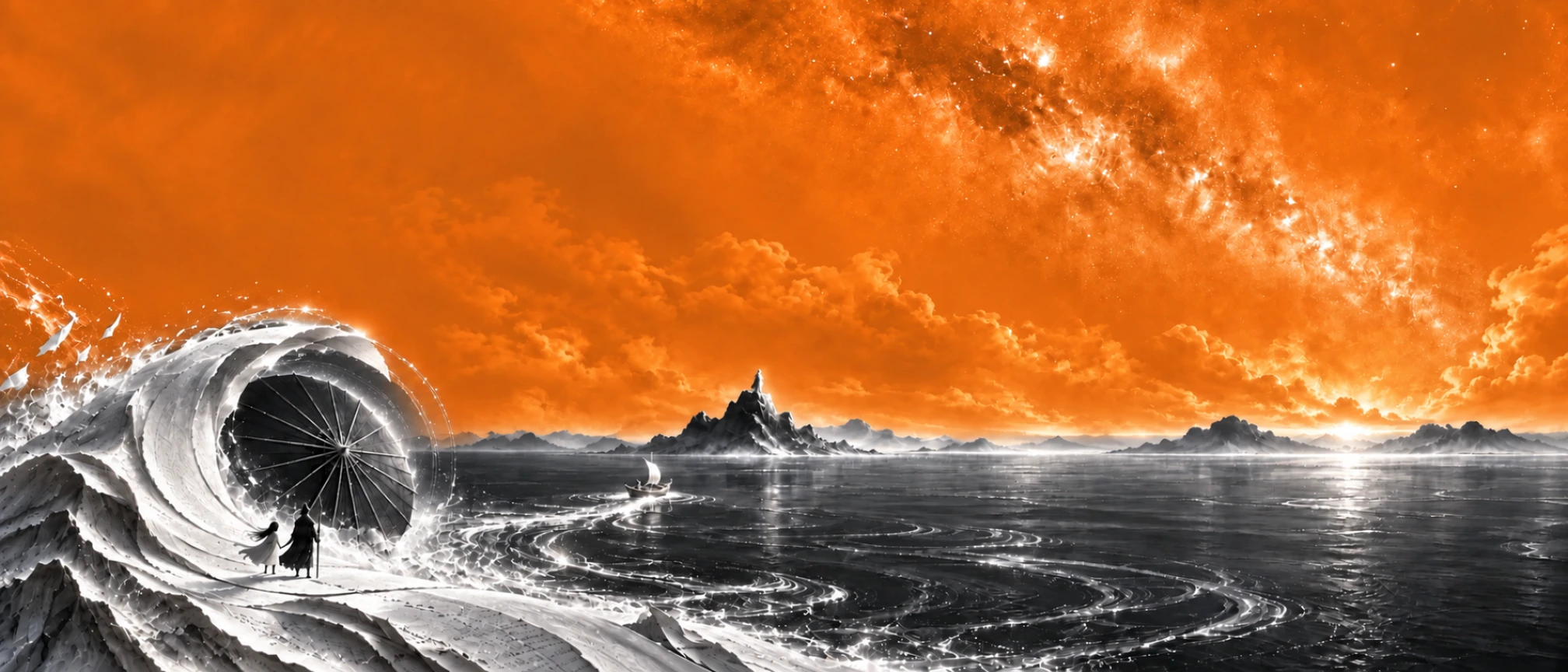
Canvas: A canvas that keeps expanding
Canvas is where VibePaper began. Place text, images and video on one canvas, connect the references for each generation, and carry an output into the next step. Write a shot description, explore compositions and turn a still into video around the assets you already have. VibePaper 2.0 connects this process to Design and the Agent, helping generated material become a finished piece.
Organize references with nodes and connections
A shot often needs more than one reference: a character’s costume, the layout of a location, a color direction and an action. Put images and descriptions in separate nodes and connect them to a generation node. The canvas makes the source of each reference visible.
Continue the next revision from those nodes. Replace the location reference or change the action description, arranging inputs for the reference modes supported by your chosen model. Keep a result you like and branch into another attempt beside it to compare directions.
Turn a selected image into video
Establishing a still before deciding motion gives you a clear visual starting point. Connect the selected image to a video generation node and describe the subject’s action, camera movement and pace. The image supplies the composition; the text describes what happens during the shot.
For a figure at a snowy crossing, try a slow push-in or a shot emphasizing fabric and blowing snow. Compare the subject, surroundings and camera movement before choosing what to change. The shot example below lets you inspect the subject’s position, spatial layers and negative space.
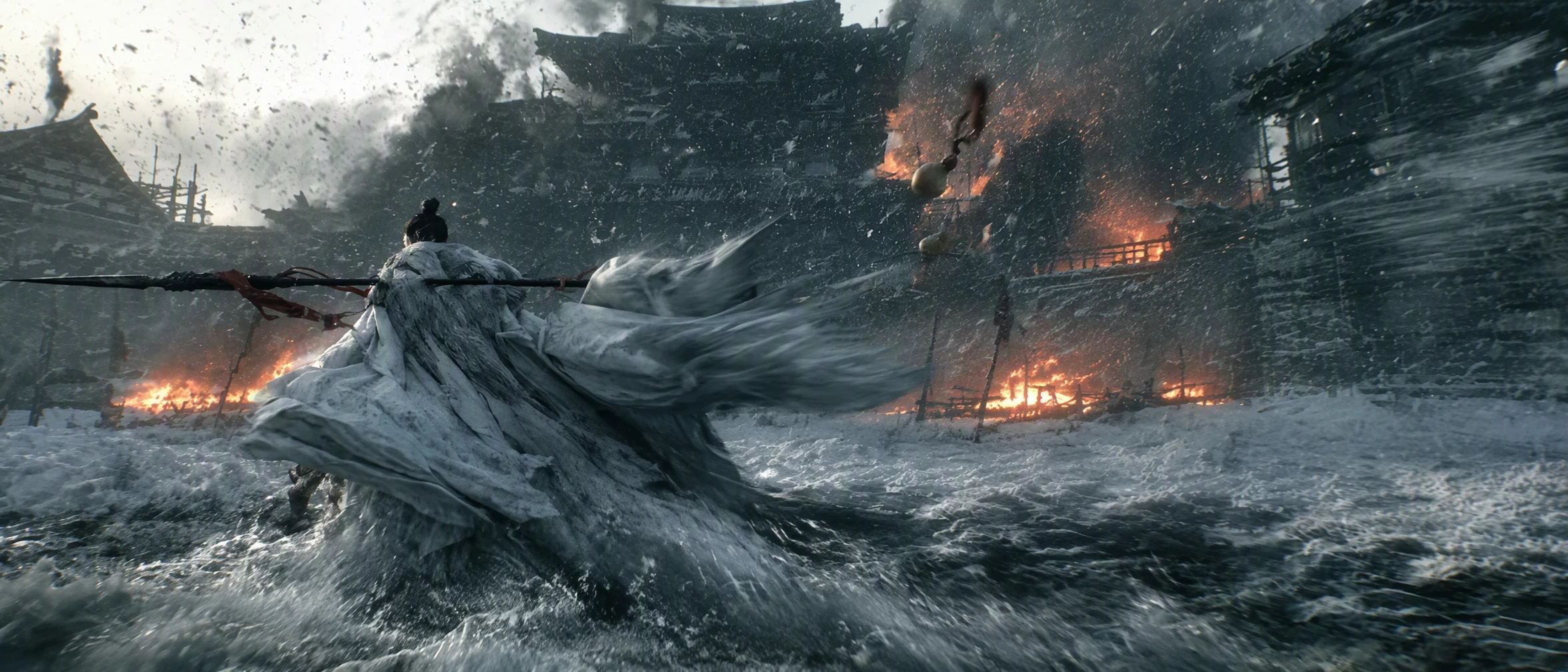
Review the Draft before final generation
With Seedance 2.5 Draft, review the preview for action, pace and overall direction. Once the preview is ready, continue into final generation if the direction works. Otherwise, revise the references or description before another attempt.
The interface shows a separate billing notice for final generation so you can review it before submitting. Checking the direction and choosing to continue are distinct steps. Hover over the example below to compare its still composition with the moving shot.
Connect canvas assets to Design
A generated shot may also become a cover, poster or presentation page. Connect images or text to a Design card and open its design project to edit typography, layout and details. Each card corresponds to a design, keeping its relationship to the source assets visible.
For a film cover, choose a still in Canvas, connect it to Design, and add the title with the position and size you want. Save the result back to the canvas to keep the references, generated assets and finished design in one project.
Start with The Pass sample
Choose Canvas in the workspace samples to create an editable copy of The Pass. Inspect how descriptions, references and generation nodes connect, then replace a reference, revise a shot description and try an image or video generation.
Try this sequence: inspect the connections, change a shot description, compare the generated result, and connect it to a Design card. Each step leaves something visible on the canvas, giving a first-time creator a concrete starting point.
Design: Give your ideas their final form
After a good image comes a series of concrete decisions: where the headline belongs, how large the product should be, which background details to remove and how a landscape image fits a portrait poster. The new Design workspace brings frames, text, images, shapes and layers together so you can make those decisions directly, alongside generation in the same project.
Multiple designs, frames and standard sizes
Create multiple designs inside one project for covers, posters and product images. Within each design, add several frames, choose standard paper sizes and give the frames names. Moving a frame moves its contents with it.
For a campaign with a main poster and supporting pages, use separate frames to compare layouts. Establish the size and purpose first, then arrange the text and images so each version is easy to find, revise and export.
Edit text and typography directly
Headlines, body copy and notes can be edited as text objects. Change the wording, choose a local font, adjust size and alignment, switch between horizontal and vertical text, and underline or strike through selected text. Move objects directly to revise the reading order.
For a film poster, add the title as a separate text object and compare left-aligned, centered and vertical treatments. A new title can be edited while keeping the image and layout. Try changing the title, resizing it and switching its direction to compare layouts of the same copy.
Crop images, style shapes and arrange groups
Replace, crop, rotate and resize images to fit a frame. Style shape fills and strokes for backgrounds, dividers or panels behind text. Marquee selection, multiple selection, grouping and snapping help arrange several elements, alongside contextual tools, copy and paste, undo and redo.
Place a product image on the left, group its name, selling points and decorative shapes, and move that group to the right before adjusting spacing. Use image tools when the asset itself needs changing, and direct layout controls when its position needs changing.
Remove backgrounds and reuse the subject
Portraits and product photos often arrive with a background that does not fit the design. Select an image and use automatic background removal, or mark it manually when you need to specify the treatment. Continue arranging the resulting subject with a new background, text and shapes.
Try this sequence: place a product photo, remove its background, resize and position the subject, then add a background color and headline. Continue from extracting a subject to arranging a poster or product image in the same design.
Remove objects and repaint selected areas
When the composition works but an object or detail needs changing, use local repainting. Mark the area with a brush, rectangle or ellipse, then describe the result: “remove this clutter and continue the wall,” or “replace this decoration with red flowers.”
Generation uses the selected area and description. Inspect the edges, texture and continuity with the original before choosing the result. Start with a clearly bounded edit, such as removing clutter in a corner or replacing a small element, with a local before-and-after comparison.
Change text that is already inside an image
Some assets have text baked into their pixels, so it cannot be selected as an ordinary text object. Image text editing first recognizes the text, lets you enter replacements for the detected blocks, and generates a modified image that can be applied to your design.
To change a date or short headline in an existing poster, inspect the recognition results and replace the relevant text. Use this for text within an image, and independent text objects for new copy that needs repeated layout changes. Check the detected text, enter its replacement and compare the resulting image to confirm the change.
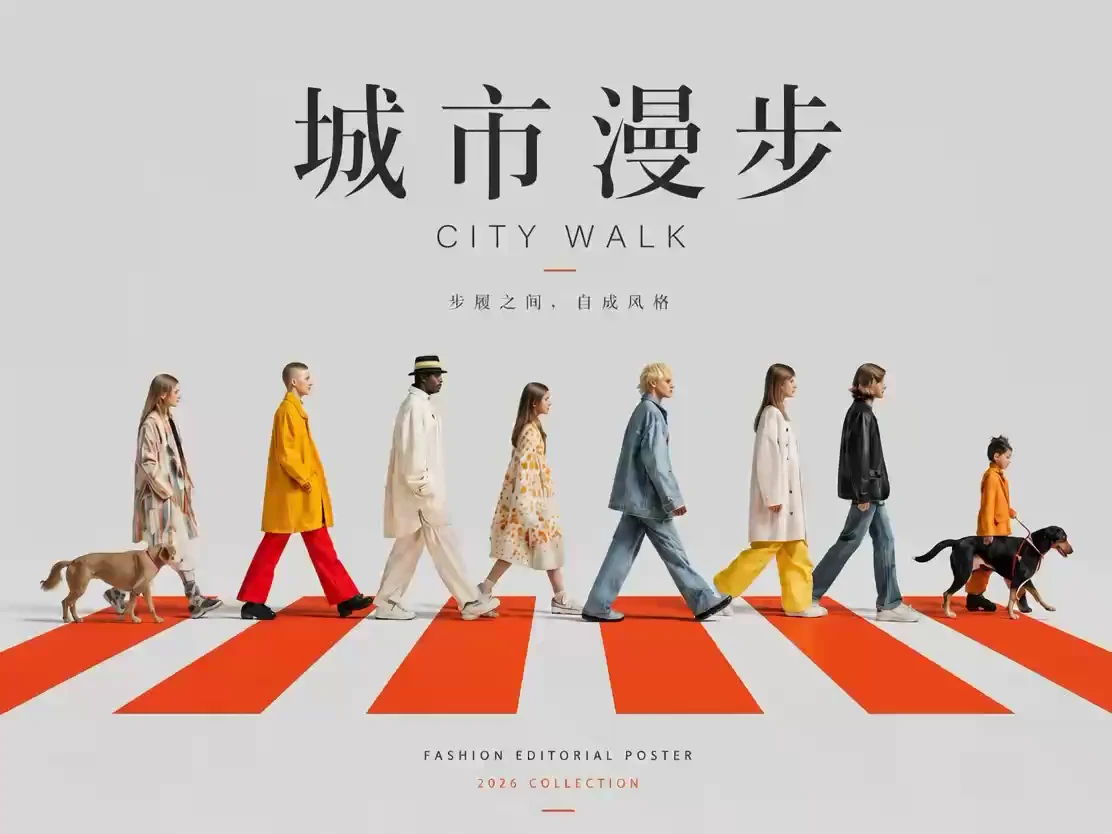
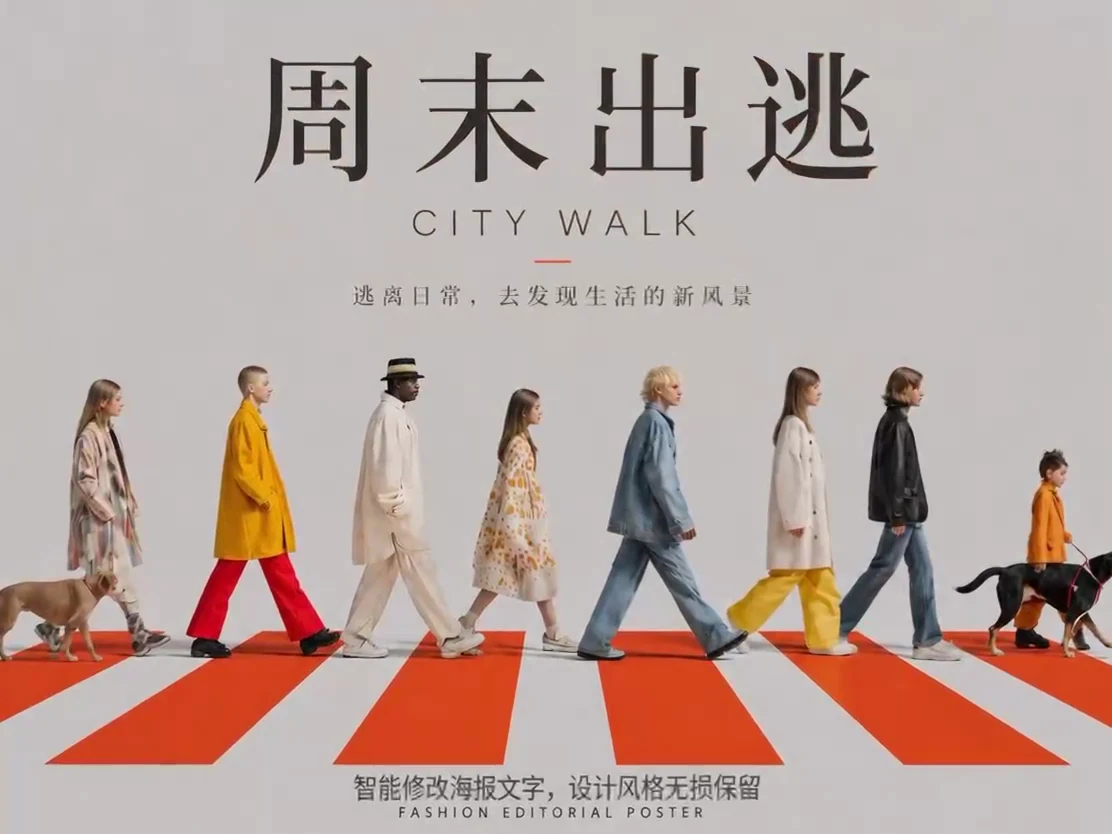
Expand an image for a new format
Fitting a landscape image into a portrait poster can crop the subject or leave too little room for text. Expansion lets you adjust the area beyond the image and describe what to generate there, adapting the asset to a new composition and format.
Add sky above a portrait for a headline, or extend a scene sideways for a wider banner. Establish what to preserve, set the expanded area, and check how the new regions join the original. Compare the original and expanded versions, then place the headline in the added space.
Explore different viewing angles
When an asset fits but its viewing angle needs exploration, adjust rotation, tilt, scale and wide-angle parameters. Try another presentation of a product, space or character composition, then bring the chosen result back into Design.
Try front-facing and side-facing directions from the same reference, comparing the subject and spatial composition. Inspect the resulting details and consistency with the reference before choosing a version.
Relight a subject for the composition
Lighting differences between a subject and background affect a composite. Relighting controls let you adjust lighting direction and treatment to generate another lighting interpretation of the current image.
Compare side lighting with more frontal illumination, inspecting the silhouette, product highlights and relationship to the background. Try the same asset with different light directions, then choose a version for the layout.
Grade colors across a set of assets
Color grading provides presets and controls for temperature, hue, saturation, contrast, exposure and split toning. Begin with a direction near your target and refine the settings for the brand, theme or visual series.
For travel posters, establish a warm or cool direction and check the sky, skin tones and shadows. Compare the original alongside warm and cool treatments and observe how each control changes the image.
Enhance and upscale image details
Use enhancement and upscaling when an image needs further refinement or a higher resolution. Upscaling provides resolution choices together with HDR and white-balance options, allowing you to choose the treatment for the asset and output.
Compare a detail such as hair, fabric or a product surface, then inspect the output dimensions and overall appearance. Continue cropping, arranging and exporting the result as part of the same design.
Decompose an image into editable layers
A generated image can be taken further by decomposing it into layers. Choose the decomposition resolution and mode, then expand the result into editable layers. Adjust order, visibility and locking to inspect and work on individual elements.
Try separating the subject, decorations and background, hide a layer to inspect the composition, or change the stacking order. Inspect the original, decomposition result, expanded layers and individual adjustments in Design to decide which elements to keep or revise.
Export PNG or PSD, or save back to Canvas
Export a finished design as PNG, or export PSD to carry layers into a later production workflow. Save the design result back to Canvas for further generation. Images from Design can also serve as Agent references, with generated outputs brought back for more editing.
A piece can move from a generated key visual to an editable headline, image refinements and a final export. When a revision changes the asset, return to generation or image tools; when it changes the copy or layout, continue editing the existing design.
Try a complete edit with the TIDELINE sample
Create an editable copy of the TIDELINE arts-festival sample and start by changing its headline, adjusting frame contents and replacing assets. Inspect how an actual design is organized, then adapt it for your own brand or work.
For a complete edit, change the headline, crop or replace an image, arrange a group, inspect the layers and export PNG. Try background removal, local repainting, image text editing and decomposition with suitable images, choosing each tool for a clear task in your work.
One More Thing
Work. Let Paper Agent carry it forward.
We noticed that creators often use Doubao, GPT or DeepSeek to write scripts, discuss ideas and draft copy. Bringing that work into a canvas means explaining the goal, feedback and asset relationships again: there is a natural context gap between the conversation and the canvas. That is why we built Work, where Paper Agent understands the task, organizes assets, calls tools and continues with feedback around the same project.
Start with a brief, script and copy
Describe the theme, audience, use case and style. Ask the Agent to shape a brief, discuss a script, break it into shot directions or prepare cover titles and publication copy. Bring existing writing and visual references into the discussion so the plan uses your material.
For a slow-travel short, provide the destination, audience and references, then ask for three shot ideas, a description for each and two cover titles. Review the direction before asking it to prepare assets on the canvas.
Turn the discussion into canvas nodes and assets
Once a direction is agreed, the Agent can organize nodes, connect references and call generation tools. Specify the candidate images you want, the description a shot needs or the references to connect, and turn conversational steps into project content.
Continue discussing the results when generation completes. Point out a composition issue, keep a chosen direction or revise the next description. Nodes and outputs remain in the project so you can inspect their relationships in Canvas and choose what continues into video or design.
Switch workspaces within the same task
Work, Canvas and Design are three views of one project. Start discussion and execution in Work, inspect nodes and outputs in Canvas, and view or edit the design in Design. The Agent can switch workspaces for a task while keeping the current project and conversation.
Outline a film direction in Work, inspect the prepared assets in Canvas and edit the cover title in Design. Bring your judgment back into the conversation for the next task. You can make detailed text and layout adjustments directly in Design.
Review results and continue with feedback
Creative tasks often take several rounds. Tell the Agent which direction to keep, which asset to regenerate and how the copy should change. It can plan the next step around the existing material; specific feedback gives that step a clear question to answer.
For example: “keep the second composition, shorten the title, and leave more space above the subject in the next image.” Review the prepared plan and assets, then request another revision, keeping decisions and work together in the same project.
Collaborate with the OFFLINE slow-travel sample
Choose the OFFLINE slow-travel Work sample to start with an existing brief, visual reference and first copy draft. Read the materials, then ask the Agent to revise the copy, add shot directions or prepare generation tasks and experience the path from discussion to assets.
Try a concrete request: “Use this brief and reference to propose three slow-travel shots, each with a visual description, subject action and camera movement, plus two cover titles.” Review the plan, ask it to prepare nodes and generate assets, and finish your layout in Design.
Frequently asked questions
Are Canvas, Design and Work separate projects?
They are three views of one project. Design can contain multiple designs; changing views does not require a new outer project.
Can I start directly in Design or Work?
Yes. Choose the view that suits your task and switch whenever you need to. Create designs directly or enter through a canvas card.
How do I try the sample projects?
Click Sample project in your workspace, then choose Canvas, Design or Work to create an editable copy. Replace the materials, refine the design or continue the conversation with your Agent to make the project your own.
Inspiration and further reading
- Vannevar Bush · As We May Think1945 · The Atlantic
- Douglas Engelbart · Augmenting Human Intellect1962 · Doug Engelbart Institute
- Bret Victor · Explorable Explanations2011 · Bret Victor
- 刘慈欣 / Cixin Liu · Death’s EndTor Books