VIBEPAPER JOURNAL / AI CREATION
Kling 3.0: What It Changes, How to Set It Up, and What Our Test Clip Shows
VibePaper · Updated
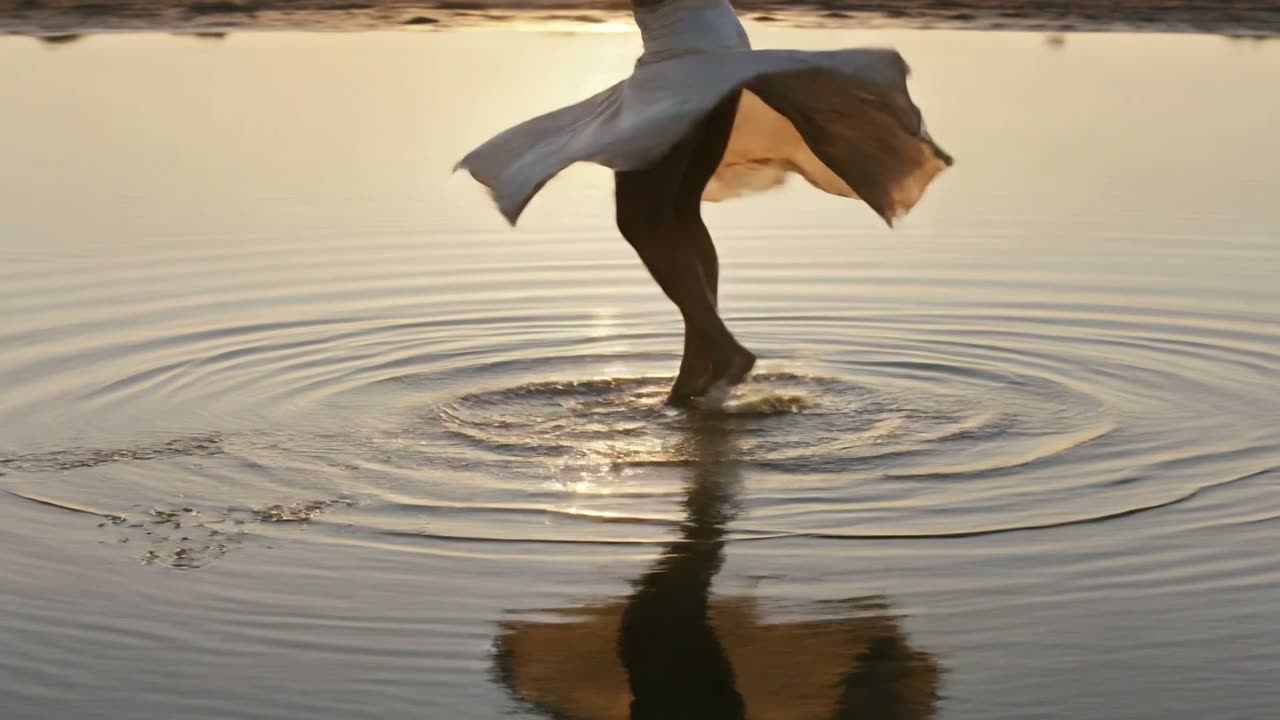
Kling 3.0 is aimed at shots where physical detail carries the picture: fabric that swings, water that ripples, a body moving through a space. Kling publishes a 3 to 15 second range per generation, reference-based consistency for characters, and native audio in five languages. We made a five-second test in VibePaper’s video generator with the Kling 3.0 Omni entry to see how a single subject holds up. The clip is below, with only a 720p web encode applied.
- Kling 3.0
- Kling 3.0 Omni
- AI video generation
- reference images
- native audio
At a glance
| Capability | Published figure or behavior | What it means in VibePaper |
|---|---|---|
| Clip length | Up to 15 seconds per generation. Kling’s blog gives a 3 to 15 second range. | The duration menu we read offers 3 s to 10 s. Plan for 10 seconds or less in VibePaper for now. |
| Resolution | Kling’s Omni guide lists 720p and 1080p modes. | The Quality menu lists std, pro and 4k. The 4K option is not on Kling’s Omni page we checked, so test it on your own job before you rely on it. |
| Reference images | Up to 7 images, each at least 300 px. With a reference video, up to 4 images or elements in total. | The Reference row shows Image and Video slots for this model. Give each image one job in the shot. |
| Reference video | One video of 3 to 10 seconds, up to 200 MB and up to 2K. | A short clip of one character helps keep appearance and voice consistent. |
| Audio | Native audio in the same generation, in English, Chinese, Japanese, Korean and Spanish. | A Sound checkbox sits under the Quality menu and is off by default. |
What changed from the earlier Kling model
Kling’s Omni guide gives the clearest comparison we found. It lists the Omni video duration as up to 15 seconds, and the earlier O1 model as up to 10 seconds. The same guide describes Kling 3.0 Omni as combining native audio with element consistency control, so a character can keep its look and its voice across a generation.
For creators, the practical change is in three places: how long one shot can run, how many reference materials can guide the same character, and whether sound is generated with the picture rather than added afterwards.
The Kling 3.0 feature set
Longer single generations
Kling publishes up to 15 seconds for one generation, and its launch blog says a creator can pick any length between 3 and 15 seconds. The duration menu in VibePaper, as we read it, stops at 10 seconds. We made our test at five seconds, with one movement in one place. We did not run a longer test, so we cannot say how a full 15-second shot holds up.
References and elements
Kling accepts up to 7 reference images, each at least 300 pixels on each side. When you add a reference video, the total drops to 4 images or elements. Kling’s guide describes elements as subjects built from images or from a short clip. For a character built from video, it asks for 3 to 8 seconds of a single person. For a voice, it asks for 5 to 30 seconds of single-person speech.
We treat the count as a ceiling. Each reference should answer one question: who is in the shot, what the place looks like, or how the camera moves. A reference that answers nothing new adds noise.
Native audio
Kling says sound is generated in the same pass as the picture, in English, Chinese, Japanese, Korean and Spanish. Its pricing table lists Native Audio on and off as separate tiers, so sound is a cost decision as well as a creative one. Our interface check found a Sound checkbox that was unchecked by default. We did not test the audio, and the web version of our clip has no sound track.
Physical detail in our test
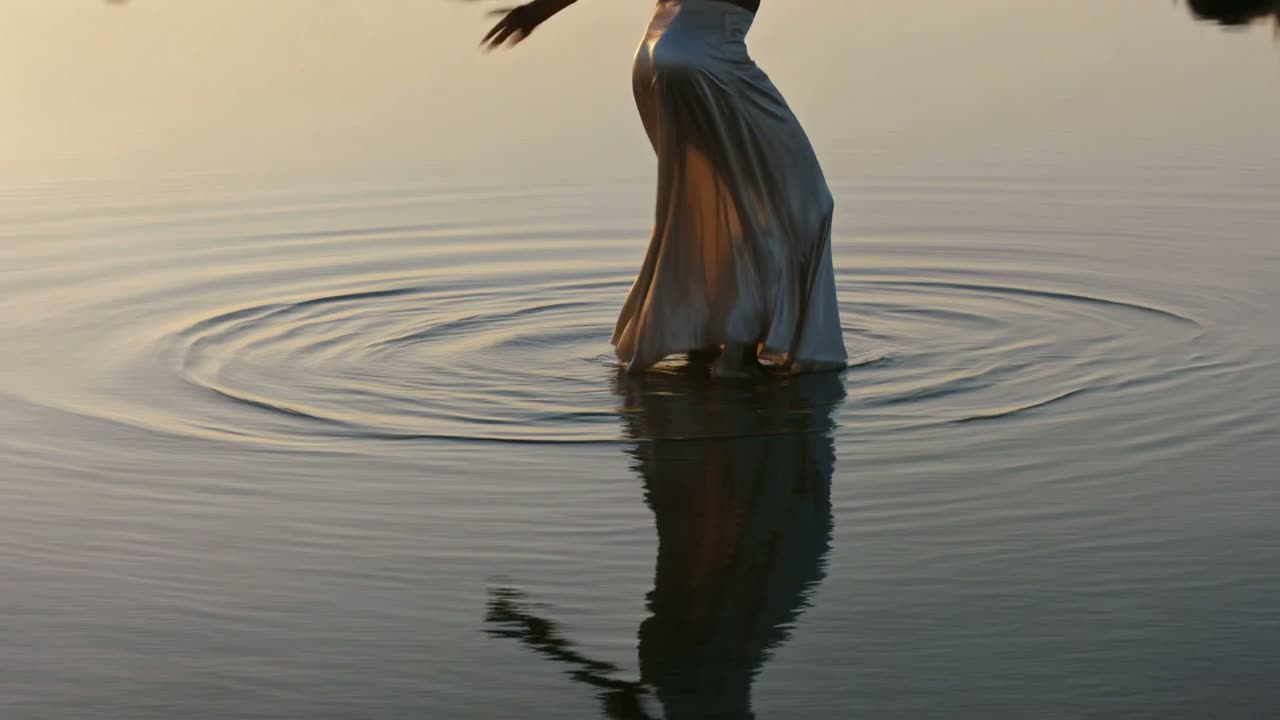
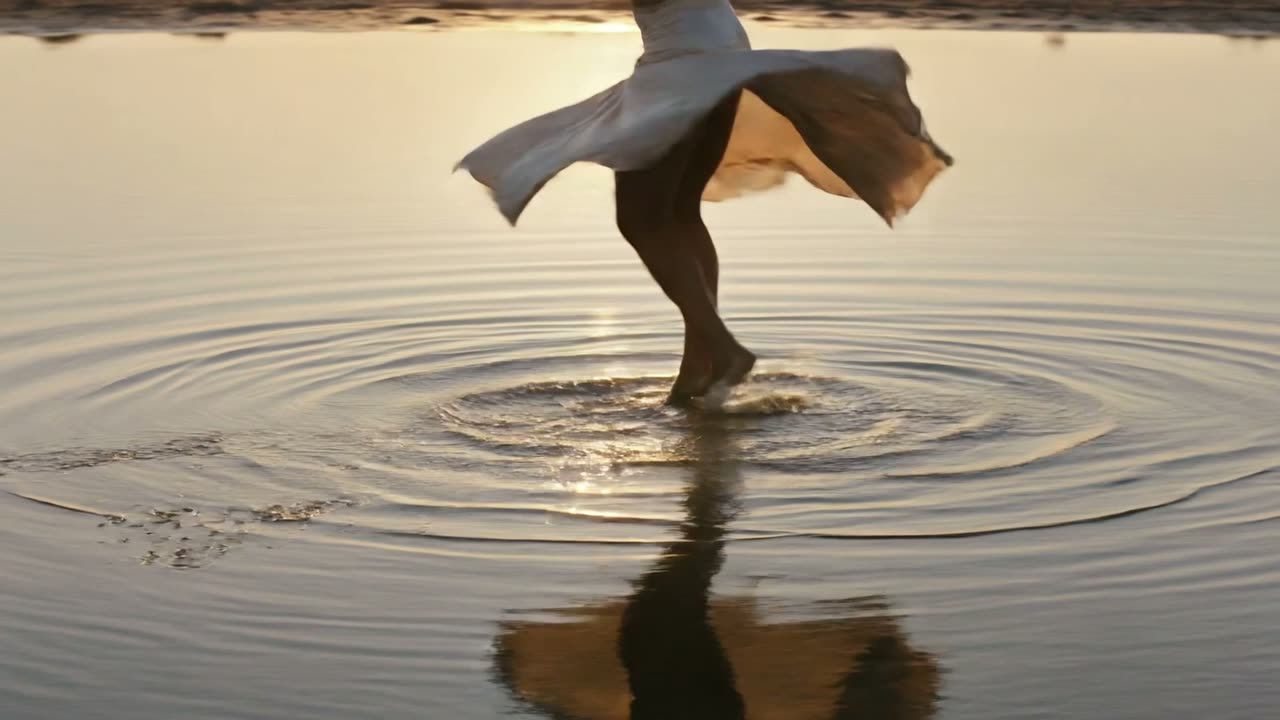
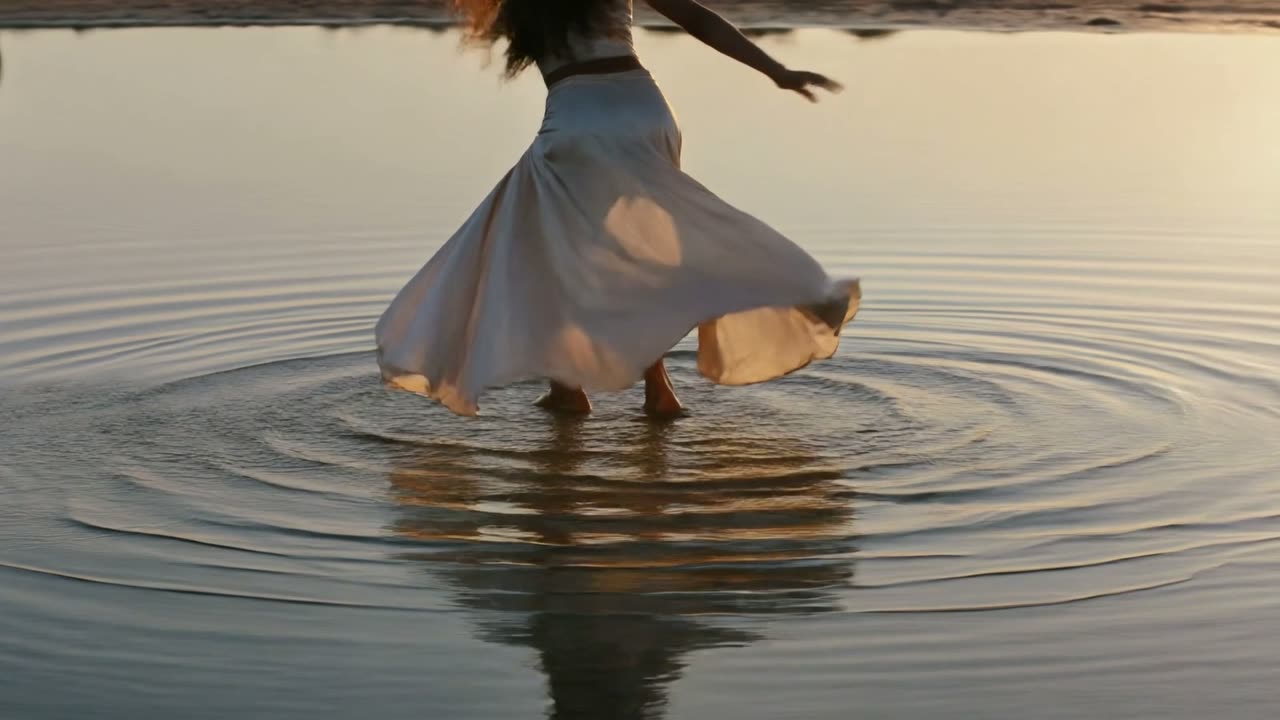
The shot that shows the model’s strengths most clearly is the one we made. A long pale skirt swings as the figure turns in shallow water. Ripples spread from the foot and cross the water, and the reflection moves with the figure. Kling’s marketing names cloth, hair, water and a car leaning into a corner as its strengths. We tested cloth and water, and nothing else.
Footage from our test
The stills below come from one five-second clip, generated in Paper Gen on 14 October 2026 with the Kling 3.0 Omni entry at 16:9. The first still is the motion version as well, a 720p web encode of the original with sound removed. The other two are frames from the same clip. We did not trim or re-grade the footage.
How to set up a Kling 3.0 clip in VibePaper
- 01Open Video modeGo to the video generator and switch from Image to Video. The page shows Image, Video and Text tabs at the top.
- 02Pick Kling 3.0 OmniOpen the model selector and go to the Kling group. It lists Kling 3.0 Omni and Kling V3. Choose Omni first, because the model decides which ratios, durations and quality options apply.
- 03Set ratio and durationThe settings row beside the Generate button shows Aspect ratio and Duration. Our menu offered 1:1, 9:16 and 16:9, and durations from 3 s to 10 s. We used 16:9 and 5 s.
- 04Check Quality and SoundThe advanced row, opened from the sliders icon, holds a Quality menu (std, pro, 4k; we used the default pro) and a Sound checkbox, which is off by default.
- 05Add references, write the shot, read the priceUse the Image and Video slots for references, then describe one shot: subject, one action, one camera move, the light. Read the number on the Generate button before you submit.
Where each control lives
The controls that shape a Kling job sit in two places. The first is the reference row above the prompt box, with the Image and Video slots for this model. The second is the settings row beneath the prompt, where the model, aspect ratio, duration, the advanced sliders and the Generate button sit. The capture below shows the advanced row for Kling 3.0 Omni with the default settings we saw.

Limits we verified
A feature list tells you what a model is meant to do. The limits decide whether it fits a job, so these are the ones we could confirm.
- The menu is shorter than the published range. Kling publishes up to 15 seconds, but the duration menu we read offers 3 s to 10 s. Plan around the menu you see.
- The 4K option is unconfirmed. The Quality menu lists 4k, but Kling’s Omni guide names only 720p and 1080p modes. Check the output on a test before you commit to a 4K job.
- Reference video has a limit. One clip of 3 to 10 seconds, up to 200 MB and up to 2K. Combined with images, the total is 4 images or elements.
- The price is on the button. We read 30.8 on the Generate button at 5 seconds, 16:9, pro quality, with Sound off. We did not check how other settings change the number, so read it again each time.
- We tested one subject. We cannot say how several characters or a crowd hold their consistency.
A prompt checklist for your first attempt
Subject: one woman in a long pale skirt, standing ankle-deep in shallow water at sunset. Action: she turns slowly, and the skirt swings out. Camera: low, steady side angle, slight push-in. Light: warm low sun, soft reflections on the water. Finish: clean cinematic look, no text, no logos.Questions we get about Kling 3.0
How long can one Kling 3.0 generation be?
Kling publishes up to 15 seconds per generation, with a 3 to 15 second range in its launch blog. The duration menu in VibePaper, as we read it, offers 3 to 10 seconds, so check the menu before you plan a longer shot.
How many reference images can I use?
Kling’s Omni guide lists up to 7 images, each at least 300 pixels on each side. If you also add a reference video, the total is 4 images or elements.
Does Kling 3.0 generate sound?
Kling says native audio is generated in the same pass as the picture, in English, Chinese, Japanese, Korean and Spanish. In VibePaper the Sound checkbox is off by default. We did not test the audio on our clip.
Does Kling 3.0 Omni support 4K?
The Quality menu in VibePaper lists 4k. Kling’s Omni guide names 720p and 1080p modes and does not mention 4K. We suggest a short test on your own job before you rely on 4K output.
References and scope
Technical concepts follow the official and primary sources listed below. Workflow suggestions and examples are editorial analysis, not guarantees of results.
- Kling VIDEO 3.0 Omni User GuideSource for the 15 second maximum, the 720p and 1080p modes, the reference image and reference video limits, the element requirements and the Native Audio on and off tiers.
- Kling VIDEO 3.0 Omni: Ultimate Guide to AI VideoSource for the 3 to 15 second range and the five languages for native audio. Dated 26 June 2026 on the page.